Showing posts with label Android code sample: ui. Show all posts

Start main activity after splash screen with animation

Modify from last exercise, in this post, we will start another activity (MainActivity) after animation of AnimationDrawable.

Start MainActivity after splash screen with animation


To start another activity, simple call startActivity() with intent.
   Intent intent = new Intent(
AndroidAnimationActivity.this, MainActivity.class);
startActivity(intent);


Create a new MainActivity.java, it's the new activity to run after splash screen. Simple display anything now.
package com.exercise.AndroidAnimation;

import android.app.Activity;
import android.os.Bundle;
import android.widget.ImageView;

public class MainActivity extends Activity {

@Override
protected void onCreate(Bundle savedInstanceState) {
super.onCreate(savedInstanceState);
ImageView image = new ImageView(this);
image.setImageDrawable(
getResources()
.getDrawable(R.drawable.ic_launcher));
setContentView(image);
}

}


Modify run() method of MyTimerTask class in our splach screen activity, AndroidAnimationActivity.java in our example:
package com.exercise.AndroidAnimation;

import java.util.Timer;
import java.util.TimerTask;

import android.app.Activity;
import android.content.Intent;
import android.graphics.drawable.AnimationDrawable;
import android.os.Bundle;
import android.widget.ImageView;

public class AndroidAnimationActivity extends Activity {

AnimationDrawable myAnimationDrawable;

Timer timer;
MyTimerTask myTimerTask;

@Override
public void onCreate(Bundle savedInstanceState) {
super.onCreate(savedInstanceState);
setContentView(R.layout.main);

ImageView myAnimation = (ImageView)findViewById(R.id.myanimation);
myAnimationDrawable
= (AnimationDrawable)myAnimation.getDrawable();

myAnimation.post(
new Runnable(){

@Override
public void run() {
myAnimationDrawable.start();
}
});

//Calculate the total duration
int duration = 0;
for(int i = 0; i < myAnimationDrawable.getNumberOfFrames(); i++){
duration += myAnimationDrawable.getDuration(i);
}

timer = new Timer();
myTimerTask = new MyTimerTask();
timer.schedule(myTimerTask, duration);
}

class MyTimerTask extends TimerTask {

@Override
public void run() {

timer.cancel();
/*
runOnUiThread(new Runnable(){
@Override
public void run() {
Toast.makeText(getApplicationContext(),
"Animation Stopped",
Toast.LENGTH_SHORT).show();
}});
*/
Intent intent = new Intent(
AndroidAnimationActivity.this, MainActivity.class);
startActivity(intent);
}
}
}


Modify AndroidManifest.xml to add <activity> of ".MainActivity".
<?xml version="1.0" encoding="utf-8"?>
<manifest xmlns:android="http://schemas.android.com/apk/res/android"
package="com.exercise.AndroidAnimation"
android:versionCode="1"
android:versionName="1.0" >

<uses-sdk android:minSdkVersion="8" />

<application
android:icon="@drawable/ic_launcher"
android:label="@string/app_name" >
<activity
android:name=".AndroidAnimationActivity"
android:label="@string/app_name" >
<intent-filter>
<action android:name="android.intent.action.MAIN" />

<category android:name="android.intent.category.LAUNCHER" />
</intent-filter>
</activity>
<activity
android:name=".MainActivity"
android:label="@string/app_name" >
</activity>
</application>

</manifest>


From the demo video, it can be noted that:
- If the devie's configuration change (such as orientation) in MainActivity, it will still in MainActivity. Will not re-start the first activity.
- May be you have to special handle the BACK button depends on what you want, because of the first activity still in history stack in this simple implementation.

download filesDownload the files.

Detect Gesture by implementing GestureDetector.SimpleOnGestureListener

This example show how to detect user gesture by implementing GestureDetector.SimpleOnGestureListener. It have the same result as last exercise of "GestureDetector".

Example of using GestureDetector.SimpleOnGestureListener

GestureDetector.SimpleOnGestureListener provides an implementation for all of the on<TouchEvent> methods by returning false for all of them. Thus we can override only the methods we care about. In our application, we have to detect onFling() only. So we can extend GestureDetector.SimpleOnGestureListener instead of implementing the GestureDetector.OnGestureListener interface.

MainActivity.java
package com.example.androidviewflipper;

import android.os.Bundle;
import android.app.Activity;
import android.support.v4.view.GestureDetectorCompat;
import android.view.GestureDetector;
import android.view.MotionEvent;
import android.view.View;
import android.view.View.OnClickListener;
import android.view.animation.Animation;
import android.view.animation.AnimationUtils;
import android.widget.Button;
import android.widget.Toast;
import android.widget.ViewFlipper;

public class MainActivity extends Activity{

private GestureDetectorCompat mDetector;

Button buttonPrev, buttonNext;
ViewFlipper viewFlipper;

Animation slide_in_left, slide_out_right;
Animation slide_in_right, slide_out_left;

@Override
protected void onCreate(Bundle savedInstanceState) {
super.onCreate(savedInstanceState);
setContentView(R.layout.activity_main);

mDetector = new GestureDetectorCompat(this, new MyGestureListener());

buttonPrev = (Button) findViewById(R.id.prev);
buttonNext = (Button) findViewById(R.id.next);
viewFlipper = (ViewFlipper) findViewById(R.id.viewflipper);

slide_in_left = AnimationUtils.loadAnimation(this,
R.anim.slide_in_left);
slide_out_right = AnimationUtils.loadAnimation(this,
R.anim.slide_out_right);

slide_in_right = AnimationUtils.loadAnimation(this,
R.anim.slide_in_right);
slide_out_left = AnimationUtils.loadAnimation(this,
R.anim.slide_out_left);

buttonPrev.setOnClickListener(new OnClickListener() {

@Override
public void onClick(View arg0) {
viewFlipper.setInAnimation(slide_in_right);
viewFlipper.setOutAnimation(slide_out_left);
viewFlipper.showPrevious();
}
});

buttonNext.setOnClickListener(new OnClickListener() {

@Override
public void onClick(View arg0) {
viewFlipper.setInAnimation(slide_in_left);
viewFlipper.setOutAnimation(slide_out_right);
viewFlipper.showNext();
}
});
;
}

@Override
public boolean onTouchEvent(MotionEvent event) {
this.mDetector.onTouchEvent(event);
return super.onTouchEvent(event);
}

class MyGestureListener extends GestureDetector.SimpleOnGestureListener {

@Override
public boolean onFling(MotionEvent e1, MotionEvent e2, float velocityX,
float velocityY) {
float sensitvity = 50;

if((e1.getX() - e2.getX()) > sensitvity){
viewFlipper.setInAnimation(slide_in_right);
viewFlipper.setOutAnimation(slide_out_left);
viewFlipper.showPrevious();
Toast.makeText(MainActivity.this,
"Previous", Toast.LENGTH_SHORT).show();
}else if((e2.getX() - e1.getX()) > sensitvity){
viewFlipper.setInAnimation(slide_in_left);
viewFlipper.setOutAnimation(slide_out_right);
viewFlipper.showNext();
Toast.makeText(MainActivity.this,
"Next", Toast.LENGTH_SHORT).show();
}

return true;
}
}
}


Keep using the layout and animation XML files in the exercise of "Bi-direction sliding ViewFlipper".

download filesDownload the files.

Using GestureDetector to detect user swipe, onFling()

Previous exercise demonstrate "Bi-direction sliding ViewFlipper" controlled by buttons. This exercise show how to implements GestureDetector.OnGestureListener to detect user swipe to update ViewFlipper.

Using GestureDetector to detect user swipe


package com.example.androidviewflipper;

import android.os.Bundle;
import android.app.Activity;
import android.support.v4.view.GestureDetectorCompat;
import android.view.GestureDetector;
import android.view.MotionEvent;
import android.view.View;
import android.view.View.OnClickListener;
import android.view.animation.Animation;
import android.view.animation.AnimationUtils;
import android.widget.Button;
import android.widget.Toast;
import android.widget.ViewFlipper;

public class MainActivity extends Activity implements
GestureDetector.OnGestureListener {

private GestureDetectorCompat mDetector;

Button buttonPrev, buttonNext;
ViewFlipper viewFlipper;

Animation slide_in_left, slide_out_right;
Animation slide_in_right, slide_out_left;

@Override
protected void onCreate(Bundle savedInstanceState) {
super.onCreate(savedInstanceState);
setContentView(R.layout.activity_main);

mDetector = new GestureDetectorCompat(this,this);

buttonPrev = (Button) findViewById(R.id.prev);
buttonNext = (Button) findViewById(R.id.next);
viewFlipper = (ViewFlipper) findViewById(R.id.viewflipper);

slide_in_left = AnimationUtils.loadAnimation(this,
R.anim.slide_in_left);
slide_out_right = AnimationUtils.loadAnimation(this,
R.anim.slide_out_right);

slide_in_right = AnimationUtils.loadAnimation(this,
R.anim.slide_in_right);
slide_out_left = AnimationUtils.loadAnimation(this,
R.anim.slide_out_left);

//viewFlipper.setInAnimation(slide_in_left);
//viewFlipper.setOutAnimation(slide_out_right);

buttonPrev.setOnClickListener(new OnClickListener() {

@Override
public void onClick(View arg0) {
viewFlipper.setInAnimation(slide_in_right);
viewFlipper.setOutAnimation(slide_out_left);
viewFlipper.showPrevious();
}
});

buttonNext.setOnClickListener(new OnClickListener() {

@Override
public void onClick(View arg0) {
viewFlipper.setInAnimation(slide_in_left);
viewFlipper.setOutAnimation(slide_out_right);
viewFlipper.showNext();
}
});
;
}

@Override
public boolean onTouchEvent(MotionEvent event) {
this.mDetector.onTouchEvent(event);
return super.onTouchEvent(event);
}

@Override
public boolean onDown(MotionEvent arg0) {
// TODO Auto-generated method stub
return false;
}

@Override
public boolean onFling(MotionEvent e1, MotionEvent e2, float velocityX,
float velocityY) {
float sensitvity = 50;

if((e1.getX() - e2.getX()) > sensitvity){
viewFlipper.setInAnimation(slide_in_right);
viewFlipper.setOutAnimation(slide_out_left);
viewFlipper.showPrevious();
Toast.makeText(MainActivity.this,
"Previous", Toast.LENGTH_SHORT).show();
}else if((e2.getX() - e1.getX()) > sensitvity){
viewFlipper.setInAnimation(slide_in_left);
viewFlipper.setOutAnimation(slide_out_right);
viewFlipper.showNext();
Toast.makeText(MainActivity.this,
"Next", Toast.LENGTH_SHORT).show();
}

return true;
}

@Override
public void onLongPress(MotionEvent e) {
// TODO Auto-generated method stub

}

@Override
public boolean onScroll(MotionEvent e1, MotionEvent e2, float distanceX,
float distanceY) {
// TODO Auto-generated method stub
return false;
}

@Override
public void onShowPress(MotionEvent e) {
// TODO Auto-generated method stub

}

@Override
public boolean onSingleTapUp(MotionEvent e) {
// TODO Auto-generated method stub
return false;
}

}


Keep using the layout and animation XML files in last exercise.

download filesDownload the files.


Next:
- Detect Gesture by implementing GestureDetector.SimpleOnGestureListener

Bi-direction sliding ViewFlipper

Last exercise show a Example of ViewFlipper. It always slide from left to right, no matter you click previous or next button. In this exercise, we will implement bi-direction sliding. Slide to right if you click next button, slide left if you click previous button. This technique can also be applied on ViewAnimator, TextSwitcher, ImageSwitcher and ViewSwitcher.

Bi-direction sliding ViewFlipper

Create /res/anim/ folder, and create the following XMLs to define the animation.

slide_in_left.xml:
<?xml version="1.0" encoding="utf-8"?>
<set xmlns:android="http://schemas.android.com/apk/res/android">
<translate android:fromXDelta="-50%p" android:toXDelta="0"
android:duration="1000"/>
<alpha android:fromAlpha="0.0" android:toAlpha="1.0"
android:duration="1000" />
</set>


slide_in_right.xml:
<?xml version="1.0" encoding="utf-8"?>
<set xmlns:android="http://schemas.android.com/apk/res/android">
<translate android:fromXDelta="50%p" android:toXDelta="0"
android:duration="1000"/>
<alpha android:fromAlpha="0.0" android:toAlpha="1.0"
android:duration="1000" />
</set>


slide_out_left.xml:
<?xml version="1.0" encoding="utf-8"?>
<set xmlns:android="http://schemas.android.com/apk/res/android">
<translate android:fromXDelta="0" android:toXDelta="-50%p"
android:duration="1000"/>
<alpha android:fromAlpha="1.0" android:toAlpha="0.0"
android:duration="1000" />
</set>


slide_out_right.xml:
<?xml version="1.0" encoding="utf-8"?>
<set xmlns:android="http://schemas.android.com/apk/res/android">
<translate android:fromXDelta="0" android:toXDelta="50%p"
android:duration="1000"/>
<alpha android:fromAlpha="1.0" android:toAlpha="0.0"
android:duration="1000" />
</set>


Modify layout file, all child View of <ViewFlipper> have android:layout_width="match_parent".
<LinearLayout xmlns:android="http://schemas.android.com/apk/res/android"
xmlns:tools="http://schemas.android.com/tools"
android:layout_width="match_parent"
android:layout_height="match_parent"
android:orientation="vertical"
android:paddingBottom="@dimen/activity_vertical_margin"
android:paddingLeft="@dimen/activity_horizontal_margin"
android:paddingRight="@dimen/activity_horizontal_margin"
android:paddingTop="@dimen/activity_vertical_margin"
tools:context=".MainActivity" >

<TextView
android:layout_width="wrap_content"
android:layout_height="wrap_content"
android:layout_gravity="center_horizontal"
android:autoLink="web"
android:text="http://arteluzevida.blogspot.com/"
android:textStyle="bold" />

<LinearLayout
android:layout_width="match_parent"
android:layout_height="wrap_content"
android:orientation="horizontal" >

<Button
android:id="@+id/prev"
android:layout_width="0dp"
android:layout_height="wrap_content"
android:layout_weight="1"
android:text="previous" />

<Button
android:id="@+id/next"
android:layout_width="0dp"
android:layout_height="wrap_content"
android:layout_weight="1"
android:text="next" />
</LinearLayout>

<ViewFlipper
android:id="@+id/viewflipper"
android:layout_width="match_parent"
android:layout_height="wrap_content" >

<ImageView
android:layout_width="match_parent"
android:layout_height="wrap_content"
android:src="@drawable/ic_launcher" />

<LinearLayout
android:layout_width="match_parent"
android:layout_height="wrap_content"
android:gravity="center"
android:orientation="vertical" >

<Button
android:layout_width="wrap_content"
android:layout_height="wrap_content"
android:text="- Button 2 -" />

<TextView
android:layout_width="wrap_content"
android:layout_height="wrap_content"
android:text="LinearLayout 2" />
</LinearLayout>

<LinearLayout
android:layout_width="match_parent"
android:layout_height="wrap_content"
android:gravity="center"
android:orientation="vertical" >

<EditText
android:layout_width="match_parent"
android:layout_height="wrap_content"
android:hint="Enter something" />

<TextView
android:layout_width="match_parent"
android:layout_height="wrap_content"
android:text="LinearLayout 3" />
</LinearLayout>

<TextView
android:layout_width="wrap_content"
android:layout_height="wrap_content"
android:text="ViewFlipper is a simple ViewAnimator that
will animate between two or more views that
have been added to it. Only one child is shown
at a time. If requested, can automatically
flip between each child at a regular interval." />
</ViewFlipper>

</LinearLayout>


Main code;
package com.example.androidviewflipper;

import android.os.Bundle;
import android.app.Activity;
import android.view.View;
import android.view.View.OnClickListener;
import android.view.animation.Animation;
import android.view.animation.AnimationUtils;
import android.widget.Button;
import android.widget.ViewFlipper;

public class MainActivity extends Activity {

Button buttonPrev, buttonNext;
ViewFlipper viewFlipper;

Animation slide_in_left, slide_out_right;
Animation slide_in_right, slide_out_left;

@Override
protected void onCreate(Bundle savedInstanceState) {
super.onCreate(savedInstanceState);
setContentView(R.layout.activity_main);

buttonPrev = (Button) findViewById(R.id.prev);
buttonNext = (Button) findViewById(R.id.next);
viewFlipper = (ViewFlipper) findViewById(R.id.viewflipper);

slide_in_left = AnimationUtils.loadAnimation(this,
R.anim.slide_in_left);
slide_out_right = AnimationUtils.loadAnimation(this,
R.anim.slide_out_right);

slide_in_right = AnimationUtils.loadAnimation(this,
R.anim.slide_in_right);
slide_out_left = AnimationUtils.loadAnimation(this,
R.anim.slide_out_left);

//viewFlipper.setInAnimation(slide_in_left);
//viewFlipper.setOutAnimation(slide_out_right);

buttonPrev.setOnClickListener(new OnClickListener() {

@Override
public void onClick(View arg0) {
viewFlipper.setInAnimation(slide_in_right);
viewFlipper.setOutAnimation(slide_out_left);
viewFlipper.showPrevious();
}
});

buttonNext.setOnClickListener(new OnClickListener() {

@Override
public void onClick(View arg0) {
viewFlipper.setInAnimation(slide_in_left);
viewFlipper.setOutAnimation(slide_out_right);
viewFlipper.showNext();
}
});
;
}

}


Next: Using GestureDetector to detect user swipe, onFling()

Example of ViewFlipper

android.widget.ViewFlipper is a simple ViewAnimator that will animate between two or more views that have been added to it. Only one child is shown at a time. If requested, can automatically flip between each child at a regular interval.

Example of ViewFlipper

<LinearLayout xmlns:android="http://schemas.android.com/apk/res/android"
xmlns:tools="http://schemas.android.com/tools"
android:layout_width="match_parent"
android:layout_height="match_parent"
android:orientation="vertical"
android:paddingBottom="@dimen/activity_vertical_margin"
android:paddingLeft="@dimen/activity_horizontal_margin"
android:paddingRight="@dimen/activity_horizontal_margin"
android:paddingTop="@dimen/activity_vertical_margin"
tools:context=".MainActivity" >

<TextView
android:layout_width="wrap_content"
android:layout_height="wrap_content"
android:layout_gravity="center_horizontal"
android:autoLink="web"
android:text="http://arteluzevida.blogspot.com/"
android:textStyle="bold" />

<LinearLayout
android:layout_width="match_parent"
android:layout_height="wrap_content"
android:orientation="horizontal" >

<Button
android:id="@+id/prev"
android:layout_width="0dp"
android:layout_height="wrap_content"
android:layout_weight="1"
android:text="previous" />

<Button
android:id="@+id/next"
android:layout_width="0dp"
android:layout_height="wrap_content"
android:layout_weight="1"
android:text="next" />
</LinearLayout>

<ViewFlipper
android:id="@+id/viewflipper"
android:layout_width="match_parent"
android:layout_height="wrap_content" >

<ImageView
android:layout_width="wrap_content"
android:layout_height="wrap_content"
android:src="@drawable/ic_launcher" />

<LinearLayout
android:layout_width="match_parent"
android:layout_height="wrap_content"
android:gravity="center"
android:orientation="vertical" >

<Button
android:layout_width="wrap_content"
android:layout_height="wrap_content"
android:text="- Button 2 -" />

<TextView
android:layout_width="wrap_content"
android:layout_height="wrap_content"
android:text="LinearLayout 2" />
</LinearLayout>

<LinearLayout
android:layout_width="match_parent"
android:layout_height="wrap_content"
android:gravity="center"
android:orientation="vertical" >

<EditText
android:layout_width="match_parent"
android:layout_height="wrap_content"
android:hint="Enter something" />

<TextView
android:layout_width="wrap_content"
android:layout_height="wrap_content"
android:text="LinearLayout 3" />
</LinearLayout>

<TextView
android:layout_width="wrap_content"
android:layout_height="wrap_content"
android:text="ViewFlipper is a simple ViewAnimator that
will animate between two or more views that
have been added to it. Only one child is shown
at a time. If requested, can automatically
flip between each child at a regular interval." />
</ViewFlipper>

</LinearLayout>

package com.example.androidviewflipper;

import android.os.Bundle;
import android.app.Activity;
import android.view.View;
import android.view.View.OnClickListener;
import android.view.animation.Animation;
import android.view.animation.AnimationUtils;
import android.widget.Button;
import android.widget.ViewFlipper;

public class MainActivity extends Activity {

Button buttonPrev, buttonNext;
ViewFlipper viewFlipper;

Animation slide_in_left, slide_out_right;

@Override
protected void onCreate(Bundle savedInstanceState) {
super.onCreate(savedInstanceState);
setContentView(R.layout.activity_main);

buttonPrev = (Button) findViewById(R.id.prev);
buttonNext = (Button) findViewById(R.id.next);
viewFlipper = (ViewFlipper) findViewById(R.id.viewflipper);

slide_in_left = AnimationUtils.loadAnimation(this,
android.R.anim.slide_in_left);
slide_out_right = AnimationUtils.loadAnimation(this,
android.R.anim.slide_out_right);

viewFlipper.setInAnimation(slide_in_left);
viewFlipper.setOutAnimation(slide_out_right);

buttonPrev.setOnClickListener(new OnClickListener() {

@Override
public void onClick(View arg0) {
viewFlipper.showPrevious();
}
});

buttonNext.setOnClickListener(new OnClickListener() {

@Override
public void onClick(View arg0) {
viewFlipper.showNext();
}
});
;
}

}

Example of ViewSwitcher

android.widget.ViewSwitcher is a sub-class of ViewAnimator, switches between two views, and has a factory from which these views are created. You can either use the factory to create the views, or add them yourself.

A ViewSwitcher can only have two child views, of which only one is shown at a time. If you have more than two child views in ViewSwitch, java.lang.IllegalStateException of "Can't add more than 2 views to a ViewSwitcher" will happen.

Example of ViewSwitcher

<LinearLayout xmlns:android="http://schemas.android.com/apk/res/android"
xmlns:tools="http://schemas.android.com/tools"
android:layout_width="match_parent"
android:layout_height="match_parent"
android:orientation="vertical"
android:paddingBottom="@dimen/activity_vertical_margin"
android:paddingLeft="@dimen/activity_horizontal_margin"
android:paddingRight="@dimen/activity_horizontal_margin"
android:paddingTop="@dimen/activity_vertical_margin"
tools:context=".MainActivity" >

<TextView
android:layout_width="wrap_content"
android:layout_height="wrap_content"
android:layout_gravity="center_horizontal"
android:autoLink="web"
android:text="http://arteluzevida.blogspot.com/"
android:textStyle="bold" />

<LinearLayout
android:layout_width="match_parent"
android:layout_height="wrap_content"
android:orientation="horizontal" >

<Button
android:id="@+id/prev"
android:layout_width="0dp"
android:layout_height="wrap_content"
android:layout_weight="1"
android:text="previous" />

<Button
android:id="@+id/next"
android:layout_width="0dp"
android:layout_height="wrap_content"
android:layout_weight="1"
android:text="next" />
</LinearLayout>

<ViewSwitcher
android:id="@+id/viewswitcher"
android:layout_width="match_parent"
android:layout_height="wrap_content" >

<ImageView
android:layout_width="wrap_content"
android:layout_height="wrap_content"
android:src="@drawable/ic_launcher" />

<LinearLayout
android:layout_width="match_parent"
android:layout_height="wrap_content"
android:gravity="center"
android:orientation="vertical" >

<Button
android:layout_width="wrap_content"
android:layout_height="wrap_content"
android:text="- Button 2 -" />

<TextView
android:layout_width="wrap_content"
android:layout_height="wrap_content"
android:text="LinearLayout 2" />
</LinearLayout>
</ViewSwitcher>

</LinearLayout>

package com.example.androidviewswitcher;

import android.os.Bundle;
import android.app.Activity;
import android.view.View;
import android.view.View.OnClickListener;
import android.view.animation.Animation;
import android.view.animation.AnimationUtils;
import android.widget.Button;
import android.widget.ViewSwitcher;

public class MainActivity extends Activity {

Button buttonPrev, buttonNext;
ViewSwitcher viewSwitcher;

Animation slide_in_left, slide_out_right;

@Override
protected void onCreate(Bundle savedInstanceState) {
super.onCreate(savedInstanceState);
setContentView(R.layout.activity_main);

buttonPrev = (Button) findViewById(R.id.prev);
buttonNext = (Button) findViewById(R.id.next);
viewSwitcher = (ViewSwitcher) findViewById(R.id.viewswitcher);

slide_in_left = AnimationUtils.loadAnimation(this,
android.R.anim.slide_in_left);
slide_out_right = AnimationUtils.loadAnimation(this,
android.R.anim.slide_out_right);

viewSwitcher.setInAnimation(slide_in_left);
viewSwitcher.setOutAnimation(slide_out_right);

buttonPrev.setOnClickListener(new OnClickListener() {

@Override
public void onClick(View arg0) {
viewSwitcher.showPrevious();
}
});

buttonNext.setOnClickListener(new OnClickListener() {

@Override
public void onClick(View arg0) {
viewSwitcher.showNext();
}
});
;
}

}


- Compare with ViewAnimator

Android example: ImageSwitcher

A simple example to implement ImageSwitcher.

Example of ImageSwitcher

package com.example.androidimageswitcher;

import android.os.Bundle;
import android.app.Activity;
import android.view.View;
import android.view.View.OnClickListener;
import android.view.ViewGroup.LayoutParams;
import android.view.animation.Animation;
import android.view.animation.AnimationUtils;
import android.widget.Button;
import android.widget.ImageSwitcher;
import android.widget.ImageView;
import android.widget.ViewSwitcher.ViewFactory;

public class MainActivity extends Activity {

Button buttonNext;
ImageSwitcher imageSwitcher;

Animation slide_in_left, slide_out_right;

int imageResources[] = {
android.R.drawable.ic_dialog_alert,
android.R.drawable.ic_dialog_dialer,
android.R.drawable.ic_dialog_email,
android.R.drawable.ic_dialog_info,
android.R.drawable.ic_dialog_map };

int curIndex;

@Override
protected void onCreate(Bundle savedInstanceState) {
super.onCreate(savedInstanceState);
setContentView(R.layout.activity_main);

buttonNext = (Button) findViewById(R.id.next);
imageSwitcher = (ImageSwitcher) findViewById(R.id.imageswitcher);

slide_in_left = AnimationUtils.loadAnimation(this,
android.R.anim.slide_in_left);
slide_out_right = AnimationUtils.loadAnimation(this,
android.R.anim.slide_out_right);

imageSwitcher.setInAnimation(slide_in_left);
imageSwitcher.setOutAnimation(slide_out_right);

imageSwitcher.setFactory(new ViewFactory() {

@Override
public View makeView() {

ImageView imageView = new ImageView(MainActivity.this);
imageView.setScaleType(ImageView.ScaleType.FIT_CENTER);

LayoutParams params = new ImageSwitcher.LayoutParams(
LayoutParams.MATCH_PARENT, LayoutParams.MATCH_PARENT);

imageView.setLayoutParams(params);
return imageView;

}
});

curIndex = 0;
imageSwitcher.setImageResource(imageResources[curIndex]);

buttonNext.setOnClickListener(new OnClickListener() {

@Override
public void onClick(View arg0) {
if (curIndex == imageResources.length - 1) {
curIndex = 0;
imageSwitcher.setImageResource(imageResources[curIndex]);
} else {
imageSwitcher.setImageResource(imageResources[++curIndex]);
}
}
});
}

}


<LinearLayout xmlns:android="http://schemas.android.com/apk/res/android"
xmlns:tools="http://schemas.android.com/tools"
android:layout_width="match_parent"
android:layout_height="match_parent"
android:orientation="vertical"
android:paddingBottom="@dimen/activity_vertical_margin"
android:paddingLeft="@dimen/activity_horizontal_margin"
android:paddingRight="@dimen/activity_horizontal_margin"
android:paddingTop="@dimen/activity_vertical_margin"
tools:context=".MainActivity" >

<TextView
android:layout_width="wrap_content"
android:layout_height="wrap_content"
android:layout_gravity="center_horizontal"
android:autoLink="web"
android:text="http://arteluzevida.blogspot.com/"
android:textStyle="bold" />

<ImageSwitcher
android:id="@+id/imageswitcher"
android:layout_width="match_parent"
android:layout_height="wrap_content"
android:layout_gravity="center_horizontal" />

<Button
android:id="@+id/next"
android:layout_width="match_parent"
android:layout_height="wrap_content"
android:text="next" />

</LinearLayout>


ListFragment with multiple choice

It is a example to implement ListFragment with multiple choice.

ListFragment with multiple choice

Base on my old exercise of "ListFragment".

Modify MyListFragment1.java, create ListAdapter with android.R.layout.simple_list_item_multiple_choice. Also modify onListItemClick() to display the clicked item and selected items.
package com.exercise.AndroidListFragment;

import android.app.ListFragment;
import android.os.Bundle;
import android.util.SparseBooleanArray;
import android.view.LayoutInflater;
import android.view.View;
import android.view.ViewGroup;
import android.widget.ArrayAdapter;
import android.widget.ListAdapter;
import android.widget.ListView;
import android.widget.Toast;

public class MyListFragment1 extends ListFragment {

String[] month ={
"January",
"February",
"March",
"April",
"May",
"June",
"July",
"August",
"September",
"October",
"November",
"December"
};

@Override
public void onCreate(Bundle savedInstanceState) {
super.onCreate(savedInstanceState);

ListAdapter myListAdapter = new ArrayAdapter<String>(
getActivity(),
android.R.layout.simple_list_item_multiple_choice,
month);

setListAdapter(myListAdapter);
}

@Override
public View onCreateView(LayoutInflater inflater, ViewGroup container,
Bundle savedInstanceState) {
return inflater.inflate(R.layout.listfragment1, container, false);

}

@Override
public void onListItemClick(ListView l, View v, int position, long id) {

String prompt =
"clicked item: " + getListView().getItemAtPosition(position).toString() + "\n\n";

prompt += "selected items: \n";
int count = getListView().getCount();
SparseBooleanArray sparseBooleanArray = getListView().getCheckedItemPositions();
for (int i = 0; i < count; i++){
if (sparseBooleanArray.get(i)) {
prompt += getListView().getItemAtPosition(i).toString() + "\n";
}
}

Toast.makeText(
getActivity(),
prompt,
Toast.LENGTH_LONG).show();
}

}

Modify listfragment1.xml to add android:choiceMode="multipleChoice" in <ListView>.
<?xml version="1.0" encoding="utf-8"?>
<LinearLayout xmlns:android="http://schemas.android.com/apk/res/android"
android:layout_width="match_parent"
android:layout_height="match_parent"
android:orientation="vertical"
android:paddingLeft="8dp"
android:paddingRight="8dp" >

<ListView
android:id="@id/android:list"
android:layout_width="match_parent"
android:layout_height="match_parent"
android:layout_weight="1"
android:choiceMode="multipleChoice"
android:drawSelectorOnTop="false" />

<TextView
android:id="@id/android:empty"
android:layout_width="match_parent"
android:layout_height="match_parent"
android:text="No data" />

</LinearLayout>


download filesDownload the files.

Example to implement Android TextSwitcher

android.widget.TextSwitcher is a specialized ViewSwitcher that contains only children of type TextView. A TextSwitcher is useful to animate a label on screen. Whenever setText(CharSequence) is called, TextSwitcher animates the current text out and animates the new text in.

Example of TextSwitcher
Example code to implement TextSwitcher.
package com.example.androidtextswitcher;

import com.example.androidviewanimator.R;

import android.os.Bundle;
import android.app.Activity;
import android.graphics.Color;
import android.graphics.Typeface;
import android.view.Gravity;
import android.view.View;
import android.view.View.OnClickListener;
import android.view.animation.Animation;
import android.view.animation.AnimationUtils;
import android.widget.Button;
import android.widget.TextSwitcher;
import android.widget.TextView;
import android.widget.ViewSwitcher.ViewFactory;

public class MainActivity extends Activity {

Button buttonNext;
TextSwitcher textSwitcher;

Animation slide_in_left, slide_out_right;

String[] TextToSwitched = { "Sunday", "Monday", "Tuesday", "Wednesday",
"Thursday", "Friday", "Saturday" };
int curIndex;

@Override
protected void onCreate(Bundle savedInstanceState) {
super.onCreate(savedInstanceState);
setContentView(R.layout.activity_main);

buttonNext = (Button) findViewById(R.id.next);
textSwitcher = (TextSwitcher) findViewById(R.id.textswitcher);

slide_in_left = AnimationUtils.loadAnimation(this,
android.R.anim.slide_in_left);
slide_out_right = AnimationUtils.loadAnimation(this,
android.R.anim.slide_out_right);

textSwitcher.setInAnimation(slide_in_left);
textSwitcher.setOutAnimation(slide_out_right);

textSwitcher.setFactory(new ViewFactory(){

@Override
public View makeView() {
TextView textView = new TextView(MainActivity.this);
textView.setTextSize(30);
textView.setTextColor(Color.RED);
textView.setGravity(Gravity.CENTER_HORIZONTAL);
textView.setTypeface(Typeface.DEFAULT_BOLD);
textView.setShadowLayer(10, 10, 10, Color.BLACK);
return textView;
}});

curIndex = 0;
textSwitcher.setText(TextToSwitched[curIndex]);

buttonNext.setOnClickListener(new OnClickListener() {

@Override
public void onClick(View arg0) {
if(curIndex == TextToSwitched.length-1){
curIndex = 0;
textSwitcher.setText(TextToSwitched[curIndex]);
}else{
textSwitcher.setText(TextToSwitched[++curIndex]);
}
}
});
}

}


<LinearLayout xmlns:android="http://schemas.android.com/apk/res/android"
xmlns:tools="http://schemas.android.com/tools"
android:layout_width="match_parent"
android:layout_height="match_parent"
android:orientation="vertical"
android:paddingBottom="@dimen/activity_vertical_margin"
android:paddingLeft="@dimen/activity_horizontal_margin"
android:paddingRight="@dimen/activity_horizontal_margin"
android:paddingTop="@dimen/activity_vertical_margin"
tools:context=".MainActivity" >

<TextView
android:layout_width="wrap_content"
android:layout_height="wrap_content"
android:layout_gravity="center_horizontal"
android:autoLink="web"
android:text="http://arteluzevida.blogspot.com/"
android:textStyle="bold" />

<TextSwitcher
android:id="@+id/textswitcher"
android:layout_width="match_parent"
android:layout_height="wrap_content" />

<Button
android:id="@+id/next"
android:layout_width="match_parent"
android:layout_height="match_parent"
android:text="next" />

</LinearLayout>


Example of ViewAnimator

android.widget.ViewAnimator is a subclass of FrameLayout container that will perform animations when switching between its views.


<LinearLayout xmlns:android="http://schemas.android.com/apk/res/android"
xmlns:tools="http://schemas.android.com/tools"
android:layout_width="match_parent"
android:layout_height="match_parent"
android:orientation="vertical"
android:paddingBottom="@dimen/activity_vertical_margin"
android:paddingLeft="@dimen/activity_horizontal_margin"
android:paddingRight="@dimen/activity_horizontal_margin"
android:paddingTop="@dimen/activity_vertical_margin"
tools:context=".MainActivity" >

<TextView
android:layout_width="wrap_content"
android:layout_height="wrap_content"
android:layout_gravity="center_horizontal"
android:autoLink="web"
android:text="http://arteluzevida.blogspot.com/"
android:textStyle="bold" />

<LinearLayout
android:layout_width="match_parent"
android:layout_height="wrap_content"
android:orientation="horizontal" >

<Button
android:id="@+id/prev"
android:layout_width="0dp"
android:layout_height="wrap_content"
android:layout_weight="1"
android:text="previous" />

<Button
android:id="@+id/next"
android:layout_width="0dp"
android:layout_height="wrap_content"
android:layout_weight="1"
android:text="next" />
</LinearLayout>

<ViewAnimator
android:id="@+id/viewanimator"
android:layout_width="match_parent"
android:layout_height="wrap_content" >

<ImageView
android:layout_width="wrap_content"
android:layout_height="wrap_content"
android:src="@drawable/ic_launcher" />

<TextView
android:layout_width="wrap_content"
android:layout_height="wrap_content"
android:text="TextView 1" />

<Button
android:layout_width="wrap_content"
android:layout_height="wrap_content"
android:text="Button 2" />

<Button
android:layout_width="match_parent"
android:layout_height="wrap_content"
android:text="Button 3" />

<LinearLayout
android:layout_width="match_parent"
android:layout_height="wrap_content"
android:orientation="vertical"
android:gravity="center" >

<Button
android:layout_width="wrap_content"
android:layout_height="wrap_content"
android:text="- Button 4 -" />

<TextView
android:layout_width="wrap_content"
android:layout_height="wrap_content"
android:text="LinearLayout 4" />
</LinearLayout>
</ViewAnimator>

</LinearLayout>


package com.example.androidviewanimator;

import android.os.Bundle;
import android.app.Activity;
import android.view.View;
import android.view.View.OnClickListener;
import android.view.animation.Animation;
import android.view.animation.AnimationUtils;
import android.widget.Button;
import android.widget.ViewAnimator;

public class MainActivity extends Activity {

Button buttonPrev, buttonNext;
ViewAnimator viewAnimator;

Animation slide_in_left, slide_out_right;

@Override
protected void onCreate(Bundle savedInstanceState) {
super.onCreate(savedInstanceState);
setContentView(R.layout.activity_main);

buttonPrev = (Button)findViewById(R.id.prev);
buttonNext = (Button)findViewById(R.id.next);
viewAnimator = (ViewAnimator)findViewById(R.id.viewanimator);

slide_in_left = AnimationUtils.loadAnimation(this, android.R.anim.slide_in_left);
slide_out_right = AnimationUtils.loadAnimation(this, android.R.anim.slide_out_right);

viewAnimator.setInAnimation(slide_in_left);
viewAnimator.setOutAnimation(slide_out_right);

buttonPrev.setOnClickListener(new OnClickListener(){

@Override
public void onClick(View arg0) {
viewAnimator.showPrevious();
}});

buttonNext.setOnClickListener(new OnClickListener(){

@Override
public void onClick(View arg0) {
viewAnimator.showNext();
}});
}

}


more related example:

Some example of simple styled button

Some example of simple styled button


<LinearLayout xmlns:android="http://schemas.android.com/apk/res/android"
xmlns:tools="http://schemas.android.com/tools"
android:layout_width="match_parent"
android:layout_height="match_parent"
android:orientation="vertical"
android:paddingBottom="@dimen/activity_vertical_margin"
android:paddingLeft="@dimen/activity_horizontal_margin"
android:paddingRight="@dimen/activity_horizontal_margin"
android:paddingTop="@dimen/activity_vertical_margin"
tools:context=".MainActivity" >

<TextView
android:layout_width="wrap_content"
android:layout_height="wrap_content"
android:layout_gravity="center_horizontal"
android:autoLink="web"
android:text="http://arteluzevida.blogspot.com/"
android:textStyle="bold" />

<Button
android:layout_width="fill_parent"
android:layout_height="wrap_content"
android:text="Default Button" />

<Button
android:layout_width="fill_parent"
android:layout_height="wrap_content"
android:background="@drawable/ic_launcher"
android:text="Button with background of drawable, no CLICK visual effect" />

<Button
android:layout_width="fill_parent"
android:layout_height="wrap_content"
android:background="#550000ff"
android:text="Button with background of color, no CLICK visual effect" />

<Button
android:layout_width="fill_parent"
android:layout_height="wrap_content"
android:drawableRight="@drawable/ic_launcher"
android:text="Button with drawableRight" />

<ImageButton
android:layout_width="fill_parent"
android:layout_height="wrap_content"
android:src="@drawable/ic_launcher" />

<Button
style="?android:attr/borderlessButtonStyle"
android:layout_width="fill_parent"
android:layout_height="wrap_content"
android:text="Button with borderlessButtonStyle (for API 11+)" />

<Button
android:layout_width="fill_parent"
android:layout_height="wrap_content"
android:shadowColor="#000000"
android:shadowDx="5"
android:shadowDy="5"
android:shadowRadius="10"
android:text="Button with shadow on Text" />

<Button
android:layout_width="fill_parent"
android:layout_height="wrap_content"
android:shadowColor="#000000"
android:text="Button with Styled Text"
android:textStyle="bold|italic" />

</LinearLayout>


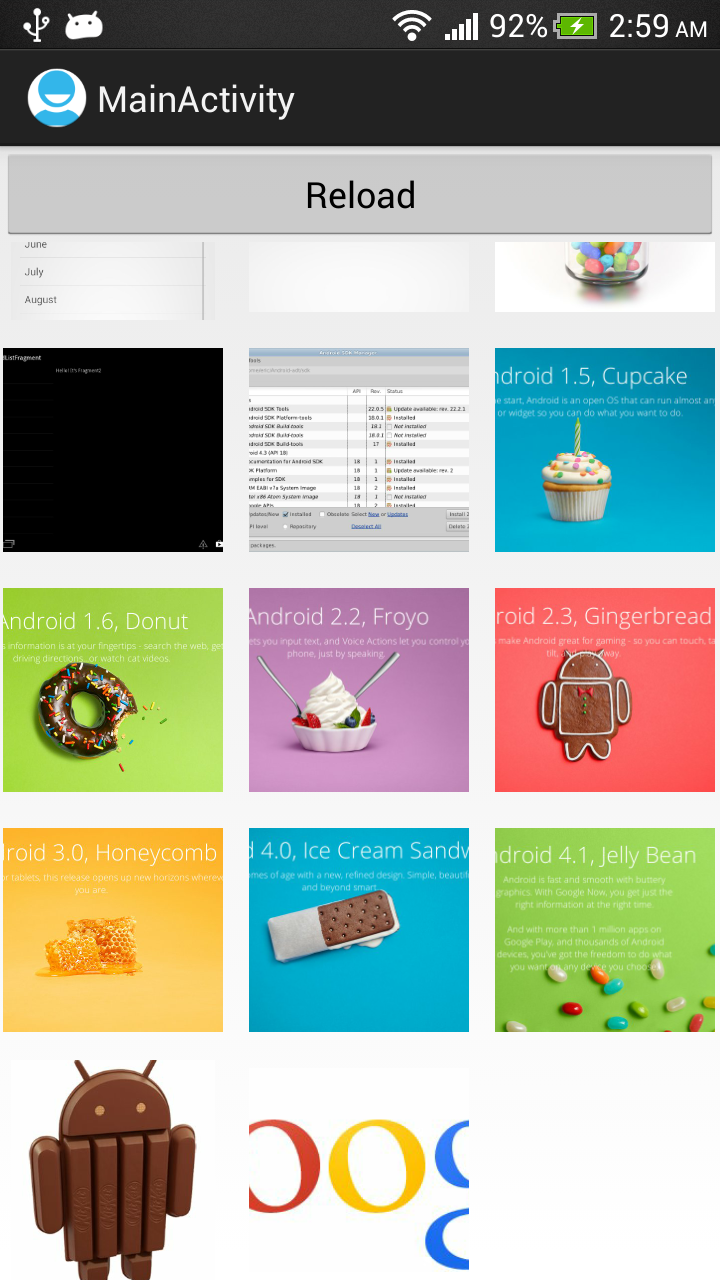
GridView example: load images to GridView from SD Card in background

Recall from the "old exercise of GridView", loading images to GridView from SD Card in onCreate() method running in main thread. Actually, it may take long time to finish, so it should be moved to background thread. This exercise move the file loading operation to AsyncTask running in background thread.

Also introduce Reload button to demonstrate how to clear and reload the list.

Load images to GridView from SD Card


Here are some notes in my implementation:
  • In my trial experience, should not access ImageAdapter(extends BaseAdapter) from background thread such as doInBackground(). Doing so will conflict with ImageAdapter's getView() method, and generate IndexOutOfBoundsException occasionally. It whould be accessed in UI thread, so the clear(), add() and notifyDataSetChanged() have been moved to onPreExecute(), onProgressUpdate() and onPostExecute().
  • Cancel the AsyncTask if not need.
  • In my approach, always new another ImageAdapter when reloading; to prevent the list inside mixed with a invalid but still running AsyncTask.

package com.example.androidgridview;

import java.io.File;
import java.util.ArrayList;

import android.os.AsyncTask;
import android.os.Bundle;
import android.os.Environment;
import android.app.Activity;
import android.content.Context;
import android.graphics.Bitmap;
import android.graphics.BitmapFactory;
import android.view.View;
import android.view.View.OnClickListener;
import android.view.ViewGroup;
import android.widget.AdapterView;
import android.widget.AdapterView.OnItemClickListener;
import android.widget.BaseAdapter;
import android.widget.Button;
import android.widget.GridView;
import android.widget.ImageView;
import android.widget.Toast;

public class MainActivity extends Activity {

AsyncTaskLoadFiles myAsyncTaskLoadFiles;

public class AsyncTaskLoadFiles extends AsyncTask<Void, String, Void> {

File targetDirector;
ImageAdapter myTaskAdapter;

public AsyncTaskLoadFiles(ImageAdapter adapter) {
myTaskAdapter = adapter;
}

@Override
protected void onPreExecute() {
String ExternalStorageDirectoryPath = Environment
.getExternalStorageDirectory().getAbsolutePath();

String targetPath = ExternalStorageDirectoryPath + "/test/";
targetDirector = new File(targetPath);
myTaskAdapter.clear();

super.onPreExecute();
}

@Override
protected Void doInBackground(Void... params) {

File[] files = targetDirector.listFiles();
for (File file : files) {
publishProgress(file.getAbsolutePath());
if (isCancelled()) break;
}
return null;
}

@Override
protected void onProgressUpdate(String... values) {
myTaskAdapter.add(values[0]);
super.onProgressUpdate(values);
}

@Override
protected void onPostExecute(Void result) {
myTaskAdapter.notifyDataSetChanged();
super.onPostExecute(result);
}

}

public class ImageAdapter extends BaseAdapter {

private Context mContext;
ArrayList<String> itemList = new ArrayList<String>();

public ImageAdapter(Context c) {
mContext = c;
}

void add(String path) {
itemList.add(path);
}

void clear() {
itemList.clear();
}

void remove(int index){
itemList.remove(index);
}

@Override
public int getCount() {
return itemList.size();
}

@Override
public Object getItem(int position) {
// TODO Auto-generated method stub
return itemList.get(position);
}

@Override
public long getItemId(int position) {
// TODO Auto-generated method stub
return 0;
}

@Override
public View getView(int position, View convertView, ViewGroup parent) {
ImageView imageView;
if (convertView == null) { // if it's not recycled, initialize some
// attributes
imageView = new ImageView(mContext);
imageView.setLayoutParams(new GridView.LayoutParams(220, 220));
imageView.setScaleType(ImageView.ScaleType.CENTER_CROP);
imageView.setPadding(8, 8, 8, 8);
} else {
imageView = (ImageView) convertView;
}

Bitmap bm = decodeSampledBitmapFromUri(itemList.get(position), 220,
220);

imageView.setImageBitmap(bm);
return imageView;
}

public Bitmap decodeSampledBitmapFromUri(String path, int reqWidth,
int reqHeight) {

Bitmap bm = null;
// First decode with inJustDecodeBounds=true to check dimensions
final BitmapFactory.Options options = new BitmapFactory.Options();
options.inJustDecodeBounds = true;
BitmapFactory.decodeFile(path, options);

// Calculate inSampleSize
options.inSampleSize = calculateInSampleSize(options, reqWidth,
reqHeight);

// Decode bitmap with inSampleSize set
options.inJustDecodeBounds = false;
bm = BitmapFactory.decodeFile(path, options);

return bm;
}

public int calculateInSampleSize(

BitmapFactory.Options options, int reqWidth, int reqHeight) {
// Raw height and width of image
final int height = options.outHeight;
final int width = options.outWidth;
int inSampleSize = 1;

if (height > reqHeight || width > reqWidth) {
if (width > height) {
inSampleSize = Math.round((float) height
/ (float) reqHeight);
} else {
inSampleSize = Math.round((float) width / (float) reqWidth);
}
}

return inSampleSize;
}

}

ImageAdapter myImageAdapter;

@Override
public void onCreate(Bundle savedInstanceState) {
super.onCreate(savedInstanceState);
setContentView(R.layout.activity_main);

final GridView gridview = (GridView) findViewById(R.id.gridview);
myImageAdapter = new ImageAdapter(this);
gridview.setAdapter(myImageAdapter);

/*
* Move to asyncTaskLoadFiles String ExternalStorageDirectoryPath =
* Environment .getExternalStorageDirectory() .getAbsolutePath();
*
* String targetPath = ExternalStorageDirectoryPath + "/test/";
*
* Toast.makeText(getApplicationContext(), targetPath,
* Toast.LENGTH_LONG).show(); File targetDirector = new
* File(targetPath);
*
* File[] files = targetDirector.listFiles(); for (File file : files){
* myImageAdapter.add(file.getAbsolutePath()); }
*/
myAsyncTaskLoadFiles = new AsyncTaskLoadFiles(myImageAdapter);
myAsyncTaskLoadFiles.execute();

gridview.setOnItemClickListener(myOnItemClickListener);

Button buttonReload = (Button)findViewById(R.id.reload);
buttonReload.setOnClickListener(new OnClickListener(){

@Override
public void onClick(View arg0) {

//Cancel the previous running task, if exist.
myAsyncTaskLoadFiles.cancel(true);

//new another ImageAdapter, to prevent the adapter have
//mixed files
myImageAdapter = new ImageAdapter(MainActivity.this);
gridview.setAdapter(myImageAdapter);
myAsyncTaskLoadFiles = new AsyncTaskLoadFiles(myImageAdapter);
myAsyncTaskLoadFiles.execute();
}});

}

OnItemClickListener myOnItemClickListener = new OnItemClickListener() {

@Override
public void onItemClick(AdapterView<?> parent, View view, int position,
long id) {
String prompt = "remove " + (String) parent.getItemAtPosition(position);
Toast.makeText(getApplicationContext(), prompt, Toast.LENGTH_SHORT)
.show();

myImageAdapter.remove(position);
myImageAdapter.notifyDataSetChanged();

}
};

}


<LinearLayout xmlns:android="http://schemas.android.com/apk/res/android"
xmlns:tools="http://schemas.android.com/tools"
android:layout_width="match_parent"
android:layout_height="match_parent"
android:orientation="vertical">

<Button
android:id="@+id/reload"
android:layout_width="match_parent"
android:layout_height="wrap_content"
android:text="Reload"/>
<GridView
android:id="@+id/gridview"
android:layout_width="fill_parent"
android:layout_height="fill_parent"
android:columnWidth="90dp"
android:numColumns="auto_fit"
android:verticalSpacing="10dp"
android:horizontalSpacing="10dp"
android:stretchMode="columnWidth"
android:gravity="center"/>

</LinearLayout>


download filesDownload the files.

download filesDownload and try the APK.

Display Spinner inside PopupWindow

It's a example to display Spinner in PopupWindow. For simple example of using Android PopupWindow, refer to the post.

Display Spinner inside PopupWindow

Display Spinner inside PopupWindow


Create /res/layout/popup.xml to define the view of the PopupWindow. Add <Spinner> with android:spinnerMode="dialog".
<?xml version="1.0" encoding="utf-8"?>
<LinearLayout xmlns:android="http://schemas.android.com/apk/res/android"
android:layout_width="fill_parent"
android:layout_height="fill_parent"
android:background="@android:color/background_light"
android:orientation="vertical" >

<LinearLayout
android:layout_width="wrap_content"
android:layout_height="wrap_content"
android:layout_margin="1dp"
android:background="@android:color/darker_gray"
android:orientation="vertical" >
>

<LinearLayout
android:layout_width="wrap_content"
android:layout_height="wrap_content"
android:layout_margin="20dp"
android:orientation="vertical" >

<TextView
android:layout_width="fill_parent"
android:layout_height="wrap_content"
android:text="It's a PopupWindow" />

<ImageView
android:layout_width="fill_parent"
android:layout_height="wrap_content"
android:src="@drawable/ic_launcher" />

<Spinner
android:id="@+id/popupspinner"
android:spinnerMode="dialog"
android:layout_width="fill_parent"
android:layout_height="wrap_content" />

<Button
android:id="@+id/dismiss"
android:layout_width="fill_parent"
android:layout_height="wrap_content"
android:text="Dismiss" />
</LinearLayout>
</LinearLayout>

</LinearLayout>


Main activity Java code to handle the PopupWindow and Spinner.
package com.example.androidpopupwindow;

import android.os.Bundle;
import android.view.LayoutInflater;
import android.view.View;
import android.view.ViewGroup.LayoutParams;
import android.widget.ArrayAdapter;
import android.widget.Button;
import android.widget.PopupWindow;
import android.widget.Spinner;
import android.app.Activity;

public class MainActivity extends Activity {

String[] DayOfWeek = {"Sunday", "Monday", "Tuesday",
"Wednesday", "Thursday", "Friday", "Saturday"};

@Override
protected void onCreate(Bundle savedInstanceState) {
super.onCreate(savedInstanceState);
setContentView(R.layout.activity_main);

final Button btnOpenPopup = (Button) findViewById(R.id.openpopup);
btnOpenPopup.setOnClickListener(new Button.OnClickListener() {

@Override
public void onClick(View arg0) {
LayoutInflater layoutInflater =
(LayoutInflater)getBaseContext()
.getSystemService(LAYOUT_INFLATER_SERVICE);
View popupView = layoutInflater.inflate(R.layout.popup, null);
final PopupWindow popupWindow = new PopupWindow(
popupView, LayoutParams.WRAP_CONTENT, LayoutParams.WRAP_CONTENT);

Button btnDismiss = (Button)popupView.findViewById(R.id.dismiss);

Spinner popupSpinner = (Spinner)popupView.findViewById(R.id.popupspinner);

ArrayAdapter<String> adapter =
new ArrayAdapter<String>(MainActivity.this,
android.R.layout.simple_spinner_item, DayOfWeek);
adapter.setDropDownViewResource(android.R.layout.simple_spinner_dropdown_item);
popupSpinner.setAdapter(adapter);

btnDismiss.setOnClickListener(new Button.OnClickListener(){

@Override
public void onClick(View v) {
popupWindow.dismiss();
}});

popupWindow.showAsDropDown(btnOpenPopup, 50, -30);
}

});
}

}


Layout file.
<LinearLayout xmlns:android="http://schemas.android.com/apk/res/android"
xmlns:tools="http://schemas.android.com/tools"
android:layout_width="match_parent"
android:layout_height="match_parent"
android:orientation="vertical"
android:paddingBottom="@dimen/activity_vertical_margin"
android:paddingLeft="@dimen/activity_horizontal_margin"
android:paddingRight="@dimen/activity_horizontal_margin"
android:paddingTop="@dimen/activity_vertical_margin"
tools:context=".MainActivity" >

<TextView
android:layout_width="wrap_content"
android:layout_height="wrap_content"
android:text="http://arteluzevida.blogspot.com/"
android:textStyle="bold"
android:layout_gravity="center_horizontal"
android:autoLink="web" />

<Button
android:id="@+id/openpopup"
android:layout_width="fill_parent"
android:layout_height="wrap_content"
android:text="Open Popup Window" />

</LinearLayout>


download filesDownload the files.


Make app with translucent background

To make your app with translucent background, apply the following code in your theme.

<item name="android:windowIsTranslucent">true</item>
<item name="android:windowBackground">@android:color/transparent</item>


For example, modify /res/values/styles.xml (the auto-generated style):
<resources>

<!--
Base application theme, dependent on API level. This theme is replaced
by AppBaseTheme from res/values-vXX/styles.xml on newer devices.
-->
<style name="AppBaseTheme" parent="android:Theme.Light">
<!--
Theme customizations available in newer API levels can go in
res/values-vXX/styles.xml, while customizations related to
backward-compatibility can go here.
-->
</style>

<!-- Application theme. -->
<style name="AppTheme" parent="AppBaseTheme">
<!-- All customizations that are NOT specific to a particular API-level can go here. -->

<item name="android:windowIsTranslucent">true</item>
<item name="android:windowBackground">@android:color/transparent</item>

</style>

</resources>

Translucent background

Determine event source in event listener

Last example demonstrate a "Simple example of Button and OnClickListener", with individual OnClickListener for each View. Alternatively, we can have a common OnClickListener for more than one View, then determine event source in event listener, and perform the correspond operation accordingly.

Determine event source in event listener


package com.example.androidbutton;

import android.os.Bundle;
import android.app.Activity;
import android.view.View;
import android.view.View.OnClickListener;
import android.widget.Button;
import android.widget.ImageView;
import android.widget.LinearLayout;
import android.widget.TextView;
import android.widget.Toast;

public class MainActivity extends Activity implements OnClickListener{

@Override
protected void onCreate(Bundle savedInstanceState) {
super.onCreate(savedInstanceState);
setContentView(R.layout.activity_main);

LinearLayout myBackGround = (LinearLayout)findViewById(R.id.mybackground);
myBackGround.setOnClickListener(this);

TextView myWeb = (TextView)findViewById(R.id.myweb);
myWeb.setOnClickListener(this);

Button button1 = (Button)findViewById(R.id.button1);
button1.setOnClickListener(this);

Button button2 = (Button)findViewById(R.id.button2);
button2.setOnClickListener(this);

ImageView myImage =(ImageView)findViewById(R.id.myimage);
myImage.setOnClickListener(this);
}

@Override
public void onClick(View v) {
if(v.getClass() == TextView.class){
Toast.makeText(getApplicationContext(),
"It's TextView:\n" + ((TextView)v).getText(),
Toast.LENGTH_SHORT).show();
}else if(v.getClass() == Button.class){
Toast.makeText(getApplicationContext(),
"It's Button:\n" + ((Button)v).getText(),
Toast.LENGTH_SHORT).show();
}else if(v.getClass() == ImageView.class){
Toast.makeText(getApplicationContext(),
"It's ImageView:",
Toast.LENGTH_SHORT).show();

//setRotation require API Level 11
float rot = ((ImageView)v).getRotation() + 90;
((ImageView)v).setRotation(rot);

}else{
Toast.makeText(getApplicationContext(),
"Background clicked",
Toast.LENGTH_SHORT).show();
}
}

}


<LinearLayout xmlns:android="http://schemas.android.com/apk/res/android"
xmlns:tools="http://schemas.android.com/tools"
android:layout_width="match_parent"
android:layout_height="match_parent"
android:paddingBottom="@dimen/activity_vertical_margin"
android:paddingLeft="@dimen/activity_horizontal_margin"
android:paddingRight="@dimen/activity_horizontal_margin"
android:paddingTop="@dimen/activity_vertical_margin"
android:orientation="vertical"
tools:context=".MainActivity"
android:id="@+id/mybackground" >

<TextView
android:id="@+id/myweb"
android:layout_width="wrap_content"
android:layout_height="wrap_content"
android:text="android-er.blogspot.com" />

<Button
android:id="@+id/button1"
android:layout_width="match_parent"
android:layout_height="wrap_content"
android:text="Button 1"/>
<Button
android:id="@+id/button2"
android:layout_width="match_parent"
android:layout_height="wrap_content"
android:text="Button 2"/>
<ImageView
android:id="@+id/myimage"
android:layout_width="wrap_content"
android:layout_height="wrap_content"
android:src="@drawable/ic_launcher"/>

</LinearLayout>


Example to specify View with half width


<LinearLayout xmlns:android="http://schemas.android.com/apk/res/android"
xmlns:tools="http://schemas.android.com/tools"
android:layout_width="match_parent"
android:layout_height="match_parent"
android:paddingBottom="@dimen/activity_vertical_margin"
android:paddingLeft="@dimen/activity_horizontal_margin"
android:paddingRight="@dimen/activity_horizontal_margin"
android:paddingTop="@dimen/activity_vertical_margin"
android:orientation="vertical"
tools:context=".MainActivity" >

<TextView
android:layout_width="wrap_content"
android:layout_height="wrap_content"
android:text="Hello"
android:textStyle="bold|italic"
android:layout_gravity="center_horizontal" />

<LinearLayout
android:layout_width="match_parent"
android:layout_height="wrap_content"
android:orientation="horizontal">
<TextView
android:layout_width="0dp"
android:layout_height="wrap_content"
android:layout_weight="1"
android:text="http://arteluzevida.blogspot.com/"
android:background="#D0D0D0" />
<Button
android:layout_width="0dp"
android:layout_height="wrap_content"
android:layout_weight="1"
android:text="Button" />
</LinearLayout>

<LinearLayout
android:layout_width="match_parent"
android:layout_height="wrap_content"
android:orientation="horizontal">
<Space
android:layout_width="0dp"
android:layout_height="wrap_content"
android:layout_weight="1" />
<TextView
android:layout_width="0dp"
android:layout_height="wrap_content"
android:layout_weight="1"
android:text="<Space> require API 14"
android:background="#B0B0B0" />
</LinearLayout>

<LinearLayout
android:layout_width="match_parent"
android:layout_height="wrap_content"
android:orientation="horizontal"
android:weightSum="1">
<TextView
android:layout_width="0dp"
android:layout_height="wrap_content"
android:layout_weight="0.5"
android:text="Use weightSum and layout_weight"
android:background="#909090" />
</LinearLayout>

</LinearLayout>


Add shadow for TextView, using Java code.


To add shadow on TextView using Java code, call setShadowLayer() method.

package com.example.androidtextview;

import android.os.Bundle;
import android.app.Activity;
import android.widget.TextView;

public class MainActivity extends Activity {

@Override
protected void onCreate(Bundle savedInstanceState) {
super.onCreate(savedInstanceState);
setContentView(R.layout.activity_main);

TextView shadowText = (TextView)findViewById(R.id.shadowtext);
shadowText.setShadowLayer(30, 10, 10, 0xFF303030);

}

}


<LinearLayout xmlns:android="http://schemas.android.com/apk/res/android"
xmlns:tools="http://schemas.android.com/tools"
android:layout_width="match_parent"
android:layout_height="match_parent"
android:paddingBottom="@dimen/activity_vertical_margin"
android:paddingLeft="@dimen/activity_horizontal_margin"
android:paddingRight="@dimen/activity_horizontal_margin"
android:paddingTop="@dimen/activity_vertical_margin"
android:orientation="vertical"
tools:context=".MainActivity" >

<TextView
android:layout_width="wrap_content"
android:layout_height="wrap_content"
android:text="Hello"
android:textStyle="bold|italic"
android:layout_gravity="center_horizontal" />

<TextView
android:id="@+id/shadowtext"
android:layout_width="match_parent"
android:layout_height="wrap_content"
android:text="http://arteluzevida.blogspot.com/"
android:textStyle="bold"
android:textSize="30sp"
android:textColor="#0000ff" />

</LinearLayout>


Related: compare to Add shadow for TextView, using XML.