While beauty’s in the eye of the beholder, designing apps for a platform also requires an attention to platform norms to ensure a great user experience. The Android Design site is an excellent resource for designers and developers alike to get familiar with Android’s visual, interaction, and written language. Many developers have taken advantage of the tools and techniques provided on the site, and every now and then we like to showcase a few notable apps that go above and beyond the guidelines.
This summer, we published the first Beautiful Design collection on Google Play. Today, we're refreshing the collection with a new set of apps just in time for the holiday season.
As a reminder, the goal of this collection is to highlight beautiful apps with masterfully crafted design details such as beautiful presentation of photos, crisp and meaningful layout and typography, and delightful yet intuitive gestures and transitions.
Timely(by Bitspin), a clock app that takes animation to a whole new level. Screen transitions are liquid smooth and using the app feels more like playing with real objects than fussing around with knobs and buttons. If you’ve ever wondered if setting an alarm could be fun, Timely unequivocally answers “yes”.
Circa, a news reader that’s fast, elegant and full of beautiful design details throughout. Sophisticated typography and banner image effects, coupled with an innovative and "snappy" interaction, makes reading an article feel fast and very, very fun.
Etsy, an app that helps you explore a world of wonderful hand-crafted goods with thoughtfully designed screen transitions, beautifully arranged layouts, and subtle flourishes like a blur effect that lets you focus on the task at hand. This wonderfully detailed app is an absolute joy to use.
If you’re an Android developer, make sure to play with some of these apps to get a sense for the types of design details that can separate good apps from great ones. And remember to review the Android Design guidelines and the Android Design in Action video series for more ideas on how to design your next beautiful Android app.
Posted by Roman Nurik, Android Developer Relations
For most users, the launcher icon (sometimes referred to as the app icon) is the first impression of your app. As higher density screens on both phones and tablets gain popularity, it's important to make sure your launcher icon is crisp and high quality. To do this, make sure you’re including XHDPI (320dpi) and XXHDPI (480dpi) versions of the icon in your app.
In addition to the current launcher icon guidelines, please also refer to these additional important guidelines when creating your icons:
Launcher icons are 48dp square and should be provided for MDPI, HDPI, XHDPI, and XXHDPI densities—at the very least XHDPI and XXHDPI.
The 512px Google Play listing icon should have the same content as the launcher icon, except for minor additional badging.
Launcher icons should be designed specifically for Android. As per the Pure Android design guidelines, avoid mimicking visual elements and styles from other platforms.
Launcher icons should be three-dimensional, front view, with a slight perspective as if viewed from above, so that users perceive some depth.
Launcher icons should have a distinct silhouette, meaning that you should avoid simple square/circle icons and instead opt for unique shapes.
Launcher icons should be simple at the macro level but still detailed at the micro level (e.g. include subtle edge effects, gradients and textures).
Launcher icons should employ lightweight background protection such as a subtle drop shadow, but it should not be too dark or visually prominent.
Launcher icons should include between 0dp and 3dp of padding. Vary the padding for optical alignment and weight normalization purposes (e.g. thinner icons can use smaller padding and thicker icons can use less padding for a more consistent icon mass across icons).
Note that tablets and other large screen devices request a launcher icon that is one density size larger than the device's actual density, so you should provide your launcher icon at the highest density possible. For example, if a tablet has an XHDPI screen, it will request the XXHDPI version of the launcher icon.
Attention to detail makes an app truly beautiful: transitions are fast and clear, layout and typography are crisp and meaningful, and design touches that delight you in surprising ways are sprinkled throughout. Today, we’re publishing a new Beautiful Design collection on Google Play, which highlights 11 beautiful apps with these kinds of masterfully crafted design details.
The collection, which we’ll refresh with new apps every so often, currently includes:
Pattrn(by Lucas Rocha), a beautifully focused app for discovering and sharing unique wallpapers on any size screen device.
Pocket(by Read It Later), an article keeper and reader app with a beautiful queue browsing interface and a remarkably comfortable and pleasing reading experience on phones and tablets.
Timer(by Opoloo), a timer app with an elegant and deeply satisfying timer-creation interface and simple, beautiful theme choices.
If you’re an Android developer, make sure to play with some of these apps to get a sense for the types of design details that can separate good apps from great ones.
Lastly, remember that this new Beautiful Design collection is just one of a number of unique collections on Google Play that are front and center in the new Google Play Store app client.
Posted by Roman Nurik, who often writes about Android design-related topics on Google+
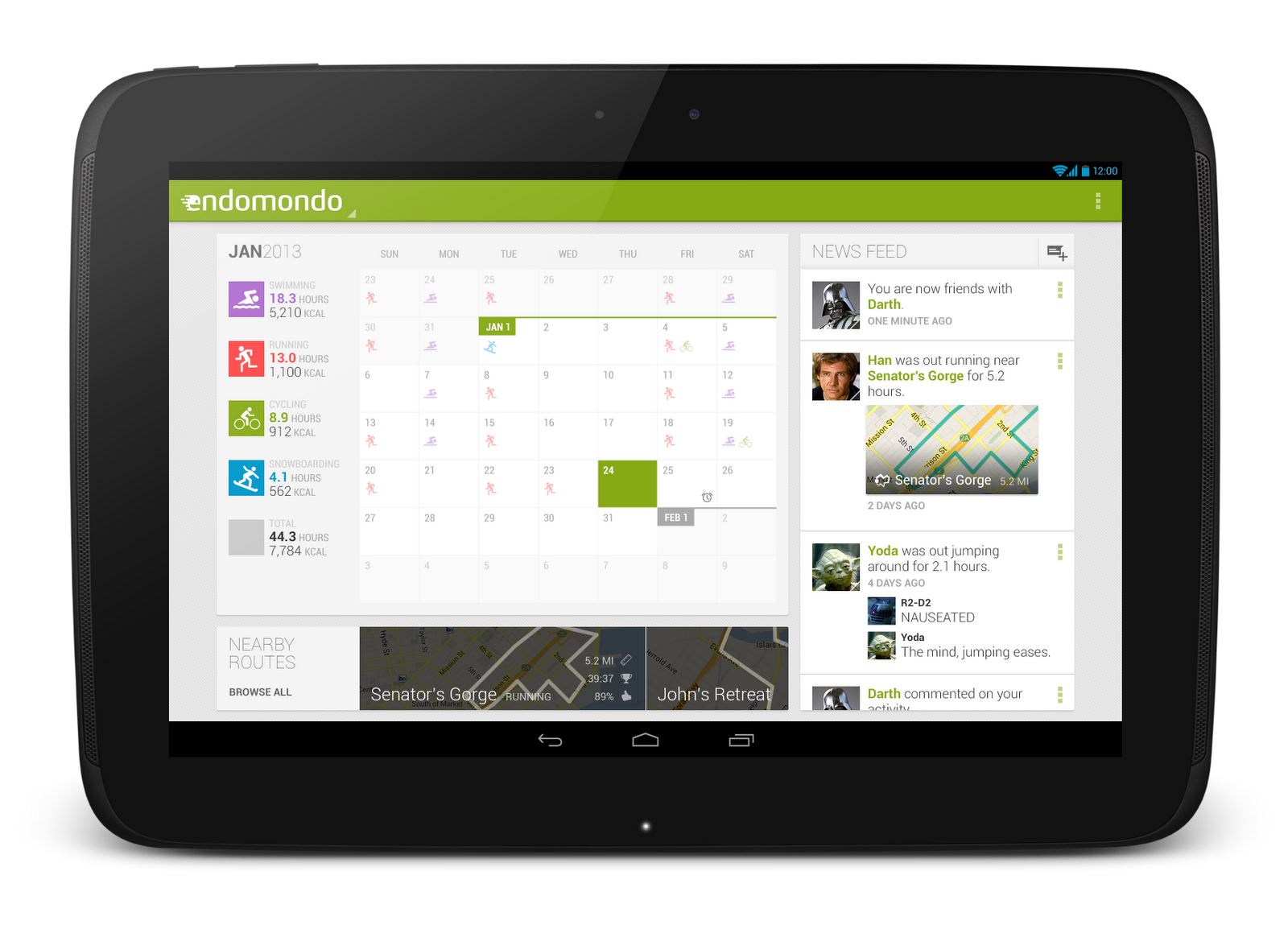
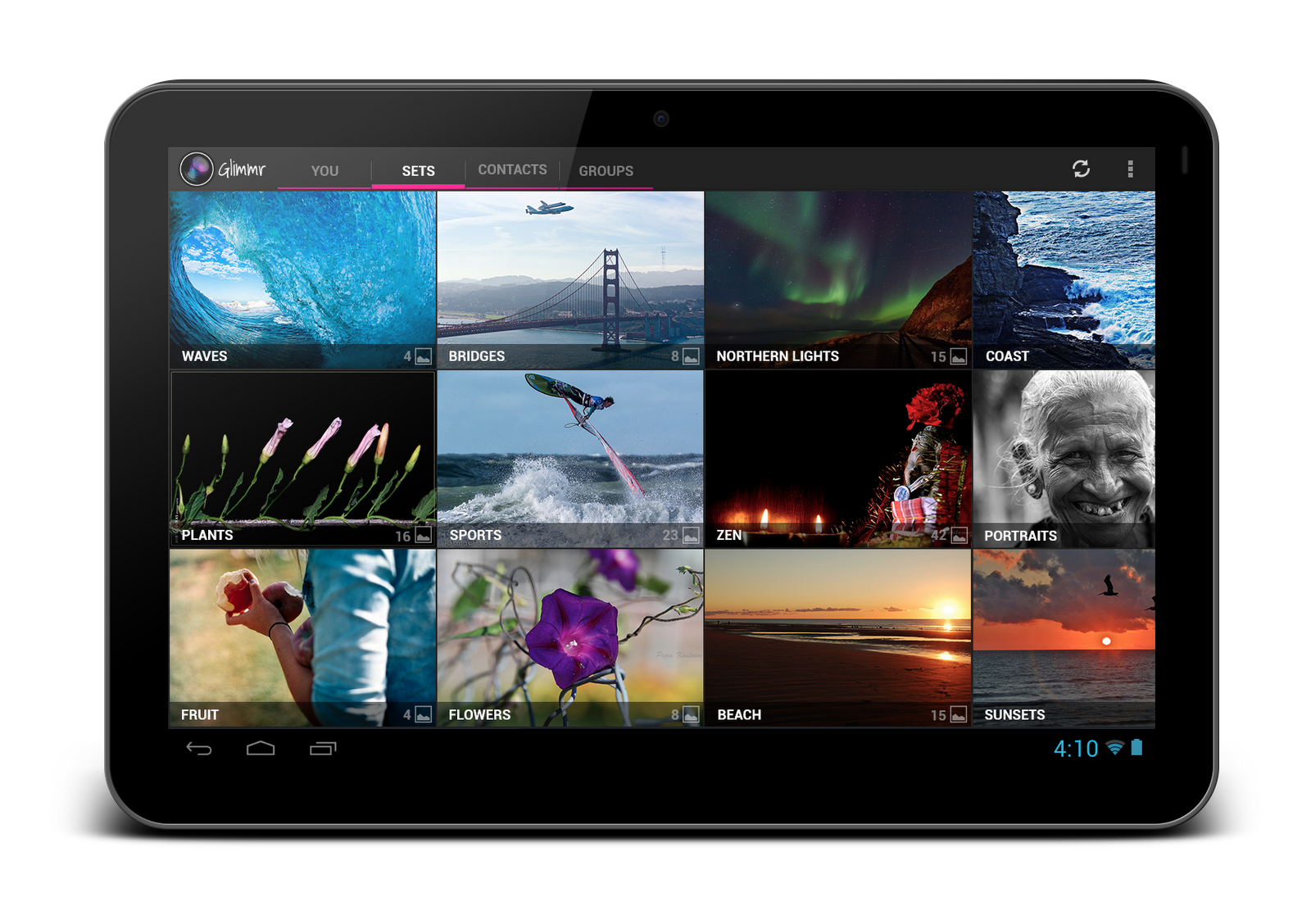
So you’ve got a great Android phone app on Google Play, your users love it, and you’re kicking back and watching the download numbers soar. Congrats! But like any enterprising developer, you may be thinking, “how do I take my app’s success even further?” The answer: an equally awesome experience on tablets. Users love their tablet apps! For example, Mint.com found that the larger screen real estate allowed tablet users to engage with their budget data 7x more than on phones. And TinyCo found that on average, paying users spent 35% more on tablets than on handsets. So now is the right time to think about how your app translates onto these larger screen devices that are designed to meet users’ more generic, everyday computing needs.
In this post, we’ll recap some of the resources available for crafting a great tablet experience for your users. These resources are useful for everyone in the app development pipeline—from product managers, to designers, to developers, and QA engineers.
Android Design Guidelines
No conversation about Android app design or development should go very far without first consulting the Android Design guidelines. While most of the sections are relevant to all Android devices, certain sections stand out as particularly relevant to design on tablets.
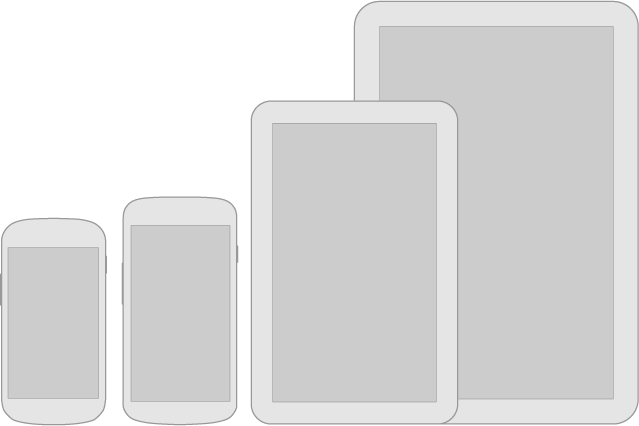
The Devices and Displays page introduces the concept of density-independence. For example, although the Nexus 4, Nexus 7, and Motorola XOOM all have a similar pixel resolution (1280x768, 1280x800, and 1280x800 respectively), they have vastly different screens. Instead of thinking in pixels, think in dips (density-independent pixels)—that way, it’s much easier to conceptualize the difference between Nexus 4 (640x384 dp), Nexus 7 (960x600dp), and Nexus 10 or the Motorola XOOM (1280x800 dp).
Following the 48dp rhythm discussed in Metrics and Grids helps take some of the guesswork out of sizing elements, especially for tablets. When in doubt, use multiples of 48dp (or 16dp for a finer grid) for sizing elements horizontally and vertically. For example, when showing sparse content on larger screens, consider using generous side margins of 96dp or 144dp. Or when deciding how wide your master pane should be in a master/detail layout for 10” tablets, see how your master content looks and feels with a width of 240dp or 288dp.
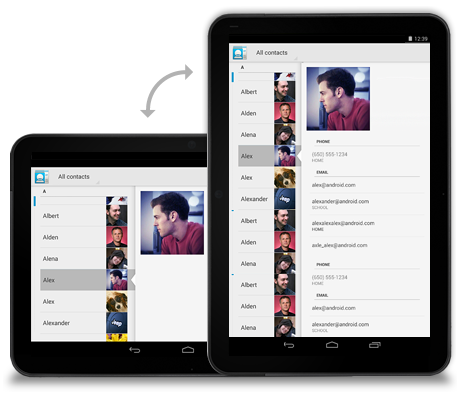
The Multi-pane Layouts guide discusses use cases and examples for combining related views into a single screen to simultaneously improve app navigation and make optimal use of the available screen real estate. It also discusses strategies for laying out content across both portrait and landscape, all while maintaining functional parity across orientations. Since users enjoy using tablets in both portrait and landscape orientations, it’s even more important to react properly to orientation changes than with phones.
Lastly, the Downloadable Stencils offer designers a great starting point for high-fidelity mockups, complete with reference device outlines, correctly sized action bars, and more.
Android Training for Developers
The Training section of the developer site offers task-oriented technical training material, complete with flow diagrams, code snippets, sample projects and more. Several of these ‘classes’ are geared toward helping developers understand how to scale your apps across any screen size.
The Designing Effective Navigation class—aimed more at the initial design phase of the app creation process—offers a methodology for effectively planning and grouping screens on tablets, and even shows example wireframes for a simple news reader application following this methodology.
Lastly, while not precisely a training class, the Supporting Tablets and Handsets document offers even more information about some of these key best practices. And if you’re the type of developer that would prefer to skip the text and jump right into the code, you can even add a Master/Detail flow, complete with handset and tablet support, to your app with just a few clicks using the Android Developer Tools for Eclipse.
Android Design in Action Highlights
Each week, a few of us on the developer relations team get together on the Android Design in Action live show to discuss Android design best practices, as well as provide original ‘redesign’ mockups to help demonstrate our vision of how Android apps should look and feel.
A recent episode focused on the topic of responsive design, or designing flexible apps that can adapt to whatever screen size or form factor they’re run on:
In the episode, we celebrated successful examples of responsive design on Android, ranging from creating calendar events in Google Calendar, to browsing wallpapers and stories in Pattrn and Pocket, to playing video in TED, and finally to managing your conference schedule in the open-sourceGoogle I/O 2012 app.
We also regularly feature tablet design concepts on the show (some are shown below), so we highly recommend tuning in each week for design ideas.
Over in the “Distribute” section of developer.android.com, the recently published Tablet App Quality checklist is a great way to check if your app is tablet-ready along a variety of technical dimensions. You should make sure that everyone involved in your mobile products is aware of the standards defined in this checklist, as it is one of the ways in which the Google Play team selects apps to feature in the Staff Picks for Tablets collection.
So What are You Waiting For?
It's been an exciting year for Android tablets. Make sure your app is positioned to succeed in the evolving device landscape by following some of the best practices and examples discussed here and on the rest of developer.android.com.