Showing posts with label Developer Console. Show all posts

Google Play App Translation Service

Posted by Ellie Powers, Google Play team


Today we are happy to announce that the App Translation Service, previewed in May at Google I/O, is now available to all developers. Every day, more than 1.5 million new Android phones and tablets around the world are turned on for the first time. Each newly activated Android device is an opportunity for you as a developer to gain a new user, but frequently, that user speaks a different language from you.


To help developers reach users in other languages, we launched the App Translation Service, which allows developers to purchase professional app translations through the Google Play Developer Console. This is part of a toolbox of localization features you can (and should!) take advantage of as you distribute your app around the world through Google Play.


We were happy to see that many developers expressed interest in the App Translation Service pilot program, and it has been well received by those who have participated so far, with many repeat customers.


Here are several examples from developers who participated in the App Translation Service pilot program: the developers of Zombie Ragdoll used this tool to launch their new game simultaneously in 20 languages in August 2013. When they combined app translation with local marketing campaigns, they found that 80% of their installs came from non-English-language users. Dating app SayHi Chat expanded into 13 additional languages using the App Translation Service. They saw 120% install growth in localized markets and improved user reviews of the professionally translated UI. The developer of card game G4A Indian Rummy found that the App Translation Service was easier to use than their previous translation methods, and saw a 300% increase with user engagement in localized apps. You can read more about these developers’ experiences with the App Translation Service in Developer Stories: Localization in Google Play.


To use the App Translation Service, you’ll want to first read the localization checklist. You’ll need to get your APK ready for translation, and select the languages to target for translation. If you’re unsure about which languages to select, Google Play can help you identify opportunities. First, review the Statistics section in the Developer Console to see where your app has users already. Does your app have a lot of installs in a certain country where you haven’t localized to their language? Are apps like yours popular in a country where your app isn’t available yet? Next, go to the Optimization Tips section in the Developer Console to make sure your APK, store listing, and graphics are consistently translated.


You’ll find the App Translation Service in the Developer Console at the bottom of the APK section — you can start a new translation or manage an existing translation here. You’ll be able to upload your app’s file of string resources, select the languages you want to translate into, select a professional translation vendor, and place your order. Pro tip: you can put your store listing text into the file you upload to the App Translation Service. You’ll be able to communicate with your translator to be sure you get a great result, and download your translated string files. After you do some localization testing, you’ll be ready to publish your newly translated app update on Google Play — with localized store listing text and graphics. Be sure to check back to see the results on your user base, and track the results of marketing campaigns in your new languages using Google Analytics integration.


Good luck! Bonne chance ! ご幸運を祈ります! 행운을 빌어요 ¡Buena suerte! Удачи! Boa Sorte!


Tablet changes in Google Play

Posted by Ellie Powers, Google Play team


Fueled by the Nexus 7 and other great devices, more than 70 million Android tablets have been activated. Thousands of developers have already designed their apps to look great on tablets, and with the holidays fast approaching, we’re making it even easier for the next wave of tablet owners to discover great apps and games.


Play Store tablet changes coming up on November 21


Last year, Google Play added a “designed for tablets” section, where users could easily discover apps that look great on their 7”- and 10”-tablets. This section includes only apps and games which meet criteria and guidelines we established last year. (Here’s an overview if you missed it.) Developers who invest the time to meet the criteria are seeing great results; take Remember The Milk, which saw an 83% increase in tablet downloads from being in this section. (see the whole story here).


On November 21 2013, the Play Store made a series of changes so it’s even easier for tablet users to find those apps that are best for their devices. First, by default, users browsing Google Play on a tablet will now see apps and games that are designed for tablets on the top lists (Top Paid, Top Free, Top Grossing, Top New Paid, Top New Free, and Trending). Tablet users will still be able to switch the view so they can see all apps or games if they choose. Also starting November 21, apps and games that do not meet the “designed for tablets” criteria will be marked as “designed for phones” for users who browse the Play Store on tablets.


You’ll want to make sure that your app is designed for tablets; read more about how to do this at the end of this blog post.


Make sure your app is ready!


If you want to be sure your app is included in the “Designed for tablets” view, go to the Developer Console to check your tablet optimization tips. If you see any issues listed there, you’ll need to address them in your app and upload a new binary for distribution. If there are no issues listed, your app is eligible to be included in the “Designed for tablets" view in the top lists.


Also, make sure to read the full tablet quality checklist to understand how to build outstanding tablet experiences.


Everyday, thousands of Android developers are taking advantage of the tremendous Android tablet opportunity. The flood of new users coupled with the increased screen size means new user experiences, more engagement and more monetization opportunities. We’re excited to see what you do!


Improved App Insight by Linking Google Analytics with Google Play

Posted by Ellie Powers, Google Play team


A key part of growing your app’s installed base is knowing more about your users — how they discover your app, what devices they use, what they do when they use your app, and how often they return to it. Understanding your users is now made easier through a new integration between Google Analytics and the Google Play Developer Console.


Starting today, you can link your Google Analytics account with your Google Play Developer Console to get powerful new insights into your app’s user acquisition and engagement. In Google Analytics, you’ll get a new report highlighting which campaigns are driving the most views, installs, and new users in Google Play. In the Developer Console, you’ll get new app stats that let you easily see your app’s engagement based on Analytics data.


This combined data can help you take your app business to the next level, especially if you’re using multiple campaigns or monetizing through advertisements and in-app products that depend on high engagement. Linking Google Analytics to your Developer Console is straightforward — the sections below explain the new types of data you can get and how to get started.


In Google Analytics, see your app’s Google Play referral flow


Once you’ve linked your Analytics account to your Developer Console, you’ll see a new report in Google Analytics called Google Play Referral Flow. This report details each of your campaigns and the user traffic that they drive. For each campaign, you can see how many users viewed listing page in Google Play and how many went on to install your app and ultimately launch it on their mobile devices.


With this data you can track the effectiveness of a wide range of campaigns — such as blogs, news articles, and ad campaigns — and get insight into which marketing activities are most effective for your business. You can find the Google Play report by going to Google Analytics and clicking on Acquisitions > Google Play > Referral Flow.


In the Developer Console, see engagement data from Google Analytics


If you’re already using Google Analytics, you know how important it is to see how users are interacting with your app. How often do they launch it? How much do they do with it? What are they doing inside the app?


Once you link your Analytics account, you’ll be able to see your app’s engagement data from Google Analytics right in the Statistics page in your Developer Console. You’ll be able to select two new metrics from the drop-down menu at the top of the page:


  • Active users: the number of users who have launched your app that day

  • New users: the number of users who have launched your app for the first time that day


These engagement metrics are integrated with your other app statistics, so you can analyze them further across other dimensions, such as by country, language, device, Android version, app version, and carrier.


How to get started


To get started, you first need to integrate Google Analytics into your app. If you haven’t done this already, download the Google Analytics SDK for Android and then take a look at the developer documentation to learn how to add Analytics to your app. Once you’ve integrated Analytics into your app, upload the app to the Developer Console.


Next, you’ll need to link your Developer Console to Google Analytics. To do this, go to the Developer Console and select the app. At the bottom of the Statistics page, you’ll see directions about how to complete the linking. The process takes just a few moments.


That’s it! You can now see both the Google Play Referral Flow report in Google Analytics and the new engagement metrics in the Developer Console.


Google Play Developer 8-Step Checkup

checkup_droid


Posted by Ellie Powers, Google Play team


Google Play gives you tons of options on publishing your apps and connecting with users. But as you get started with new features like beta testing and staged rollouts, it’s a good idea to do a checkup and make sure you’ve covered the basics.


1. Boost your developer account security


  • If you take just one step today to protect your Google Play apps, enable two-step authentication for your Google account, and encourage the rest of your team to do the same.

  • Next, many developers first set up their Google Play account with their personal gmail account, but it’s actually a good idea to transfer your apps to a separate account. All of your installations and reviews remain intact. If you haven’t done this already, transfer your apps to a new account today.

  • Don’t share passwords. Instead, add each individual who needs access and only grant the minimum level of access they need — and encourage them to enable two-step authentication.

  • Review the list of people with access regularly, and when people leave your project, make it a standard practice to remove their access. Learn more about developer account security.


2. Protect your keystore


In order to publish an update to an existing app, you’ll need to sign it with the same keystore every time. If you lose your keystore, you’ll lose your history and reviews, so you’ll need to start over with new apps with new package name and a new key, so you’ll want to make sure you protect it. First, choose a secure password, and don’t use the same password that you use for your Google account. Next, back up your keystore somewhere, but don’t upload it to Google Drive with an account you use to publish on Google Play.


3. Check your email addresses


As a developer, you are responsible for checking two important email addresses:


  • Account owner email address: Google uses the address used to register your Developer Console to contact you about your apps and account, so it is extremely important that someone is responsible for checking it regularly. If necessary, you can forward messages from this account via Gmail, or transfer your apps to another account.

  • Customer support email address: For each individual application, you can specify the best way for users to contact you for customer support. Ensure that a valid support email address for your product is specified. As a best practice, this should probably be a designated support account that is checked regularly and not the same email as the address used to login to the Developer Console.


4. Familiarize yourself with the policies


We recently launched some new guides and examples for Google Play’s Developer Program Policies and Developer Distribution Agreement. Note that once you publish an app as free, you can’t change it to a paid app later, though you can add in-app products.


5. Set up team processes


You may have many people involved with your Google Play apps. Make sure roles are clear in terms of whose job it is to publish updates, check statistics and optimization tips, read and reply to user reviews, and track revenue. Make sure all of these people have the right access to the Developer Console. Many developers who are part of larger organizations also report to their larger teams about their apps’ performance. Designate someone to make sure your app description, graphics (including localized and tablet screenshots), and pricing are up to date.


6. Configure your Developer Console UI languages


To change the language you want to see the Developer Console in, set your primary language. If you speak additional languages, configure those, too — user reviews in those languages won’t be translated automatically in the Developer Console. That was a popular request from developers.


7. Refresh your app’s marketing materials


8. Stay on top of developer news


To make sure you’re aware of the latest Google Play updates for developers, make sure you check the Android Developers blog regularly, follow +Android Developers, and check the Developer Console regularly for announcements.


Watch Android @ Google I/O 2013

Posted by Reto Meier, Android Developer Relations Tech Lead


We had a lot to talk about this year at I/O. We launched Google Play services 3.1 with Google Play games services, improved Location APIs, and Google Cloud Messaging enhancements; Android Studio: A new IDE for Android development based on IntelliJ IDEA Community Edition; and Google Play Developer Console improvements such as app translation service, revenue graphs, beta testing & staged rollouts, and optimization tips.


With the excitement of these announcements behind us, it's time to sit back, relax, and watch all the sessions we missed during the event. To make that easier, we've collected all the Android sessions together in the Android @ Google I/O 13 page on the developer site.


We've also created the Google I/O 13 - The Android Sessions playlist (embedded below), as well as playlists for each developer category: design, develop, and distribute.


For those of you who prefer listening to your I/O talks without the distraction of watching speakers and slides, we're also making the sessions available as part of the Android Developers Live Podcast.


Google I/O is always a highlight on the Android Developer Relations team's calendar, so we'll be keeping the magic alive with our Android Developers Live broadcasts.


This week we resumed our regular broadcasts with Android Design in Action offering a review of Android Design sessions at I/O. Next week will see the return of This Week in Android Development and The App Clinic, and stay tuned for more episodes of Table Flip, GDG App Clinics, and more!


We'll also continue to add new DevBytes and BizDevBytes to offer tips and tricks for improving your apps and making them more successful.


As always you can talk to us and keep track of our upcoming broadcasts, Android Studio news, and other Android developer news on the +Android Developers Google+ page.


New Ways to Optimize Your Business in Google Play

Posted by Ellie Powers, Google Play team


This week at I/O, we were excited to announce some updates to Google Play to help you optimize your business on Google Play: to help you take control of your app publishing, gain insight into your users, and expand your app’s success globally.


Play Store’s new view: apps designed for tablets


Many of you have invested in making great tablet experiences for your users, and we want to ensure that that work pays off and that users are able to discover great apps for their tablets. This week, the Google Play store began providing a view of our top charts highlighting apps which have been designed for tablets according to our tablet app quality checklist.


Be sure you don’t miss out! Check that your app’s optimization tips say that your app is designed for tablets, and upload tablet screenshots for 7” and 10” tablets.


Beta testing and staged rollouts


We have introduced support for beta testing and staged rollouts so that you can get feedback on your new app or app update early in its development and make sure your users are happy with the results. You can test two different versions on two different groups at the same time, such as testing a newer version with your employees first, and a more mature version with a group of external testers.


The beta testing is private on Google Play, and you can specify who gets these versions by adding Google Groups and Google+ Communities. Users give you feedback privately rather than through public reviews. When you’re satisfied that your new version is ready, you can now do a staged rollout to a percentage of your userbase. To give you more flexibility in light of beta testing and help get your whole team involved in the Developer Console, we will soon launch additional access controls.


Localization improvements


We’re collaborating with Google's internationalization team to make translating your app into new languages easier than ever. You can purchase professional translations of your apps from independent providers through the Google Play Developer Console. You can upload the strings you want translated, select the languages you want to translate into, and select your translation vendor based on time and price. If you’re interested in translating your apps with this feature, sign up to be a part of the preview in the Developer Console today on the APK page.


The new optimization tips for localization will help you identify new potential opportunities for global expansion based on popular languages for your app’s users and category. To fully localize your app into a language, you need to translate the strings in an APK, translate your Google Play store listing, and upload localized graphics. The optimization tips will also let you know if you’re missing any of these pieces.


New Analytics and monetization features


Getting better revenue and engagement data has been another key developer request, as developers told us that they check their revenue and stats constantly. New revenue charts in the Developer Console allow you to see your app’s daily revenue and summary figures, and you can filter the data by country. Coming soon, Google Play and Google Analytics are teaming up to bring you better insight into your users. Google Analytics will start showing Google Play views and installs for each campaign, while Google Play will show Google Analytics engagement metrics.


For those of you using in-app billing, we’ve heard your feedback and made some improvements to reduce your development time and costs. Your test accounts will now able to make in-app test purchases without those transactions actually being charged, but everything else works the same as it would for a real user.


In a few weeks, we will launch a new Order Status API, which allows you to verify the status of an in-app order from your servers. We will also be launching a tool for automating downloads of financial reports. Finally, the new Google Wallet Merchant Center is continuing to roll out with enhanced reporting, additional analytics and many other enhancements.


Google Play for Education coming soon


You'll soon be able to offer apps to schools through Google Play for Education, which launches later this year to K-12 schools in the United States. This online destination will allow schools to discover, purchase, and distribute apps to their students. Visit developer.android.com/edu to get started creating or optimizing your apps for schools today.


Android at Google I/O 2013: Keynote Wrapup


The last year has been an exciting one for Android developers, with an incredible amount of momentum. In fact, over 48 billion apps have been downloaded from Google Play to date, with over 2.5 billion app downloads in the last month alone.


This week, at Google I/O, our annual developer conference, we’re celebrating this momentum, and putting on stage a number of new features and advancements both for the Android platform and Google Play, to help you design, develop and distribute great apps to your users.


We just wrapped up the keynote, and wanted to share a number of those new features; we’ll be spotlighting some of them throughout the week both here, on Google+, and in 36 Android sessions and sandboxes at the Moscone center in San Francisco (with many of the sessions livestreamed at developer.google.com). Enjoy!


Google Play Services 3.1


Google Play Services is our platform for bringing you easier integration with Google products and new capabilities to use in your apps. Today we announced a new version of Google Play Services that has some great APIs for developers.


  • Google Play games services give you great new social features that you can add to your games   achievements, leaderboards, cloud save, and real-time multiplayer

  • Location APIs make it easy to add location- and context-awareness to your apps through a fused location provider, geofencing, and activity recognition

  • Google Cloud Messaging enhancements let you use bidirectional XMPP messaging between server and devices and dismiss notifications

  • Cross-Platform Single Sign On, which lets your users sign in once, for all of their devices using Google+ Sign-In.


Android Studio: A new IDE for Android development


Today we announced a new Integrated Development Environment (IDE) built just for Android, with the needs of Android developers in mind. It’s called Android Studio, it’s free, and it’s available now to try as an early access preview.


To build Android Studio, we worked with with JetBrains, creators of one of the most advanced Java IDEs available today. Based on the powerful, extensible IntelliJ IDEA Community Edition, we've added features and capabilities that are designed specifically for Android development, to simplify and optimize your daily workflow for creating Android apps.


Google Play Developer Console: a better distribution experience


Building awesome Android apps is only part of the story. Today we announced great new features in the Google Play Developer Console that give you more control over how you distribute your app and insight into how your app is doing:


  • App translation service: a pilot program that lets you purchase professional translations for your app directly from the Developer Console.

  • Revenue graphs: a new tab in the Developer Console gives you a summary of your app global app revenue over time.

  • Alpha and beta testing and staged rollouts: you can now distribute your app to controlled alpha and beta test groups, or do staged rollouts to specific percentages of your userbase.

  • Optimization tips: design your app for tablets and understand how to expand your app into new language markets.

  • Google Analytics: launching later this summer, your Google Analytics usage stats will be viewable right in the Developer Console.

  • Referral tracking: also launching later this summer, you’ll get a new report in Google Analytics to show what blogs, campaigns, and ads are driving your installs.


Follow the Android Sessions


Join us for the Android sessions today and through the week by livestream. Visit the I/O Live Stream schedule for details.

All Google Play Developers Can Now Reply to User Reviews

Posted by Ellie Powers, Google Play team


There are a lot of great things a developer can do to promote their app, but the best way for your app to take off is when a really happy user tells their friend about your app, who tells their friend, who tells someone else — you get the picture.


That’s why it’s always been a priority for us to strengthen that conversation between developers and their users. Google Play is now connected with Google+, and by associating reviews with an identity, the quality of reviews has increased tremendously (in addition to letting users find reviews they trust).


We’re happy to announce today that all developers on Google Play can now reply to user reviews. You can reply to user reviews in the Google Play Developer Console, and your replies are shown publicly below the corresponding user review on Google Play. Users receive an email notification when you reply and can either reply to you directly by email, or update their review if they choose to do so -- though keep in mind that users are not obligated to update their reviews. You can also update your reply at any time.


Developers who have been using this feature have told us that the following best practices are most effective in improving their apps and building strong relationships with their users:


  • Check reviews frequently, and involve people from all parts of your organization

  • Identify and prioritize bugs based on user impact

  • Let users know when their problems are resolved

  • Reply constructively to both negative and positive reviews

  • Refer users to documentation or other support channels

  • Get ideas about new improvements or features

  • Thank the users who are your biggest advocates


style="border:1px solid #ddd;border-radius: 6px;margin-top:1em;" src="http://4.bp.blogspot.com/-W7nmPciNlG0/UXgyKF6R8cI/AAAAAAAACGU/YNPDn9d2TZY/s1600/reply-reviews.png" />

Before replying to user reviews, it is important to review the posting guidelines to be sure that you are using this feature in compliance with Google Play’s policies at all times. The reply to each user’s review will be public, so prospective users will see if you provide consistently high quality customer support. Read the posting guidelines, and start connecting with users today.


Conversations are meant to be two-sided, and facilitating discussion between developers and users will ultimately yield better apps, to the benefit of everyone.


Tablet Optimization Tips in the Google Play Developer Console

Posted by Ellie Powers, Google Play team


Last week we updated our guidelines for making great tablet apps and added the ability to upload tablet screenshots that are shown preferentially in Google Play to users on those devices. Today we’re introducing a new Optimization Tips page in the Google Play Developer Console that lets you quickly see how your app is doing against basic guidelines for tablet app distribution and quality.


When you upload an app, the Developer Console now runs a series of checks to verify basic criteria from the Tablet App Quality Checklist and shows you any issues it finds in the Optimization Tips page.


style="border:1px solid #ddd;border-radius: 6px;"src="http://1.bp.blogspot.com/-w0gl8ttJFFo/UXgQDbepnuI/AAAAAAAACGE/nTanLxr3C7A/s1600/opt-tips-crop-720.png" />

If you’re developing for tablets, make sure to visit your Optimization Tips page to ensure that your app is delivering a great tablet experience. If there are any issues listed, we recommend addressing them in your app as soon as possible and uploading a new binary for distribution, if needed.


For ideas on how to design and build a great tablet app, including details on how to address issues listed in your Optimization Tips page, check out the Tablet App Quality Checklist. Remember that a great tablet experience goes well beyond these basic checks. Keep working to bring your tablet users the most polished UI and richest content possible.


Now is the time to switch to the new Google Play Developer Console

Posted by Ellie Powers, Google Play team


The new Google Play Developer Console is out of preview and is the default experience. In addition to offering all of the functionality of the old version, the new version features a streamlined publishing flow, store listings in more languages with language-specific graphics, and new user ratings statistics, so you’ll have better tools for delivering great Android apps that delight users. If you haven't already made the switch, now is the time, as we'll be retiring the former version on April 15 to focus our efforts on this new experience.


The new Developer Console brings you new functionality built on top of a quick-to-navigate user experience. You can add language-specific graphics to your store listing to help your users around the world understand what your app is about. New graphs let you track your ratings over time with breakdowns by device, country, app version, and more. The statistics page now shows you when you released each version of your app, so you see how each new version changes your installations and ratings, and you can view crashes specific to an application version. These new features are only the beginning of what’s to come for developers on Google Play in the future.


If you're still using the old Developer Console, now is the time to switch over fully to the new version by clicking “Try the new version” in the header. Let us know what you think by clicking the “Feedback” link in the header in the new Developer Console, and if you experience any serious issues, please contact support. We’re planning some more improvements in the next month and in the future. Your input will continue to be key to what we do.


New Google Play Developer Console Available to Everyone

Posted by Eva-Lotta Lamm, Riccardo Govoni, and Ellie Powers of the Google Play team


We've been working on a new Google Play Developer Console, centered around how you make and publish apps, to create a foundation for the exciting features we have planned for the future. Earlier this year at Google I/O, we demoed the new version (video). Since then, we've been testing it out with tens of thousands of developers, reviewing their feedback and making adjustments.


Today, we’re very happy to announce that all developers can now try the new Google Play Developer Console. At its core, the Developer Console is how you put your app in front of hundreds of millions of Android users around the world, and track how your app is doing. We hope that with a streamlined publishing flow, new language options, and new user ratings statistics, you’ll have better tools for delivering great Android apps that delight users.


Sleeker, faster, easier to navigate


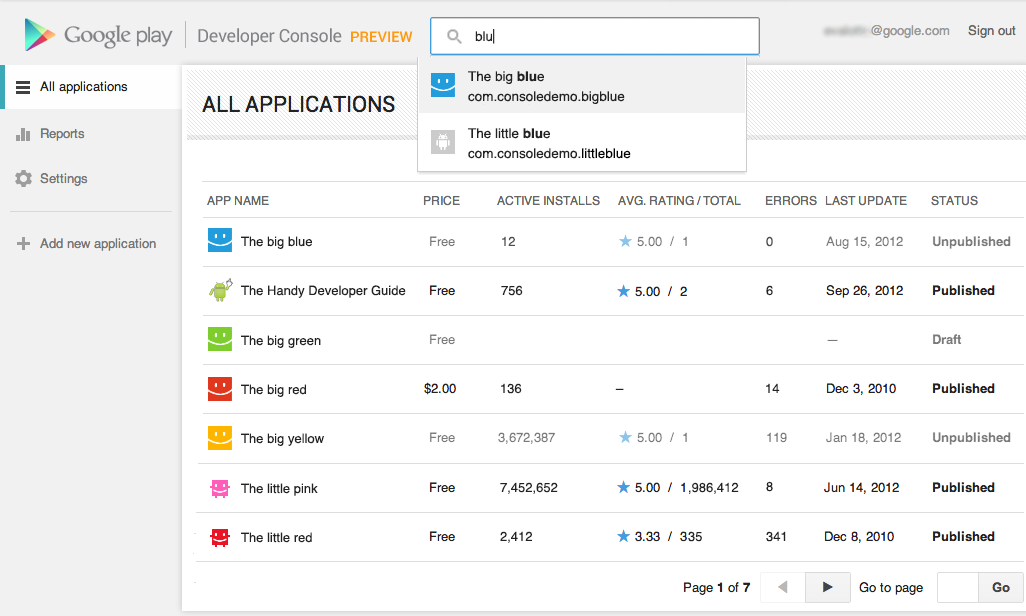
You spend a lot of time in the Developer Console, so we overhauled the interface for you. It's bright and appealing to look at, easy to find your way around using navigation and search, and it loads quickly even if you have a lot of apps.


Designed for speed. Quickly locate the app data and business information you use every day. More screenshots »


Track user ratings over time, and find ways to improve


One of the most important things you'll be able to do is track the success of your app over time — it's how you continue to iterate and make beautiful, successful apps. You'll see new statistics about your user ratings: a graph showing changes over time, for both the all-time average user rating and new user ratings that come in on a certain day. As with other statistics, you'll be able to break down the data by device, country, language, carrier, Android version, and app version. For example, after optimizing your app for tablets, you could track your ratings on popular tablets.


New charts for user ratings. You can now track user ratings over time and across countries. More screenshots »


Better publishing workflow


We've completely revamped and streamlined the app publishing process to give you more time to build great apps. You can start with either an APK or an app name, and you can save before you have all of the information. You can also now see differences between the new and old versions of an app, making it easy to catch unintentional changes before you publish a new version to your users.


More languages for listings, with automated translations


You'll also enjoy a new app publishing flow and the ability to publish your app listing in 49 languages. Once you've saved any change to your application in the new Developer Console, your users will have the option of viewing an automatic translation of your listing on the web today and soon on devices — no additional action on your part is needed.


How can you try the new version?


Go to your Developer Console and click on “Try the new version” in the header or go directly to the new version. If you prefer the new version, don't forget to bookmark the new URL.


Please note that we're not quite done yet, so the following advanced features are not yet supported in the new Google Play Developer Console: multiple APK support, APK Expansion Files and announcements. To use these features, you can click “Switch back” in the header at any time to return to the old version.


Click the “Feedback” link in the header to let us know what you think, so that we can continue to improve your experience as a Google Play developer. Thank you for all of the feedback so far.


Replying to User Reviews on Google Play

[This post is by Trevor Johns from the Android team — Tim Bray]

User reviews on Google Play are great for helping people discover quality apps and give feedback to developers and other potential app users. But what about when developers want to give feedback to their users? Sometimes a user just needs a helping hand, or perhaps a new feature has been added and the developer wants to share the good news.

That’s why we’re adding the ability for Google Play developers to respond to reviews from the Google Play Android Developer Console. Developers can gather additional information, provide guidance, and — perhaps most importantly — let users know when their feature requests have been implemented.

We’ll also notify the user who wrote the review via email that the developer has responded. Users can then contact the developer directly if additional followup is needed or update their review.

We’re releasing this feature today to those with a Top Developer badge (). And based on feedback from users and developers, we will offer it to additional Google Play developers in the future.

Conversations are meant to be two-sided, and facilitating discussion between developers and users will ultimately yield better apps, to the benefit of everyone.

Making the Android Developer Console work for your whole team

[This post is by Ellie Powers, a product manager on the Google Play team. — Tim Bray]

As your apps have gotten more successful, more people have joined your team. Today, we’re making it easier to work together on analyzing and managing your published Android apps. Sharing passwords is generally a bad idea; so as of now, there’s no need to do that for the Android Developer Console — everyone can use his or her own Google account.


The account that you use today to sign into the Android Developer Console will become the account owner; only the account owner can manage access to the Console. The account owner can email an invitation to anyone; when they accept it, they’ll need to use a Google account to sign in.


Different people in your team do different jobs, so when you invite someone to your Android Developer Console, you’ll be able to specify what access they need. Today, you can limit access per-user to financial reports. In the future, we’ll give you more fine-grained control over access to the Console. For details, see Account owner and user access.


We hope this helps your team collaborate more easily. If you have any issues, feel free to get in touch via the Developer Help Center.


Join the discussion on

+Android Developers