Showing posts with label Tools. Show all posts

Understanding APK packaging in Android Studio 2.2

Posted by Wojtek KaliciƄski, Android Developer Advocate


Android Studio 2.2 launched recently with href="http://android-developers.blogspot.com/2016/09/android-studio-2-2.html">many
new and improved features. Some of the changes are easy to miss because they
happened under the hood in the Android Gradle plugin, such as the newly
rewritten integrated APK packaging and signing step.


APK Signature Scheme v2


With the introduction of the new href="https://source.android.com/security/apksigning/v2.html">APK Signature
Scheme v2 in Android 7.0 Nougat, we decided to rewrite how assembling APKs
works in the Android Gradle plugin. You can read all about the low-level
technical details of v2 signatures in the href="https://source.android.com/security/apksigning/v2.html">documentation,
but here's a quick tl;dr summary of the info you need as an Android app
developer:


  • The cryptographic signature of the APK that is used to verify its integrity
    is now located immediately before the ZIP Central Directory.
  • The signature is computed and verified over the binary contents of the whole
    APK file, as opposed to decompressed file contents of each file in the archive
    in v1.
  • An APK can be signed by both v1 and v2 signatures at the same time, so it
    remains backwards compatible with previous Android releases.


Why introduce this change to how Android verifies APKs? Firstly, for enhanced
security and extensibility of this new signing format, and secondly for
performance - the new signatures take significantly less time to verify on the
device (no need for costly decompression), resulting in faster app installation
times.


The consequence of this new signing scheme, however, is that there are new
constraints on the APK creation process. Since only uncompressed file contents
were verified in v1, that allowed for quite a lot of modifications to be made
after APK signing - files could be moved around or even recompressed. In fact,
the zipalign tool which was part of the build process did exactly
that - it was used to align ZIP entries on correct byte boundaries for improved
runtime performance.


Because v2 signatures verify all bytes in the archive and not individual ZIP
entries, running zipalign is no longer possible after
signing
. That's why compression, aligning and signing now happens in a
single, integrated step of the build process.


If you have any custom tasks in your build process that involve tampering with
or post-processing the APK file in any way, please make sure you disable them or
you risk invalidating the v2 signature and thus making your APKs incompatible
with Android 7.0 and above.


Should you choose to do signing and aligning manually (such as from the command
line), we offer a new tool in the Android SDK, called href="https://developer.android.com/studio/command-line/apksigner.html?utm_campaign=android_discussion_api_111016&utm_source=anddev&utm_medium=blog">apksigner,
that provides both v1 and v2 APK signing and verification. Note that you need to
run zipalign before running apksigner
if you are using v2 signatures. Also remember the jarsigner tool
from the JDK is not compatible with Android v2 signatures, so you can't use it
to re-sign your APKs if you want to retain the v2 signature.


In case you want to disable adding v1 or v2 signatures when building with the
Android Gradle plugin, you can add these lines to your href="https://google.github.io/android-gradle-dsl/current/com.android.build.gradle.internal.dsl.SigningConfig.html">signingConfig
section in build.gradle:

class="prettyprint">v1SigningEnabled false
v2SigningEnabled false


Note: both signing schemes are enabled by default in Android Gradle plugin 2.2.


Release builds for smaller APKs


We took this opportunity when rewriting the packager to make some optimizations
to the size of release APKs, resulting in faster downloads, href="http://android-developers.blogspot.co.uk/2016/07/improvements-for-smaller-app-downloads.html">smaller
delta updates on the Play Store, and less wasted space on the device. Here
are some of the changes we made:


  • Files in the archive are now sorted to minimize differences between APK
    builds.
  • All file timestamps and metadata are zeroed out.
  • Level 6 and level 9 compression is checked for all files in parallel and the
    optimal one is used, i.e. if L9 provides little benefit in terms of size, then
    L6 may be chosen for better performance
  • Native libraries are stored uncompressed and page aligned in the APK. This
    brings support for the android:extractNativeLibs="false" option
    from Android 6.0 Marshmallow and lets applications use less space on the device
    as well as generate smaller updates on the Play Store
  • Zopfli compression is not used to better support Play Store update
    algorithms. It is not recommended to recompress your APKs with Zopfli.
    Pre-optimizing individual resources such as PNG files in your projects is still
    fine and recommended.


These changes help make your releases as small as possible so that users can
download and update your app even on a slower connection or on less capable
devices. But what about debug builds?


Debug builds for installation speed


When developing apps you want to keep the iteration cycle fast - change code,
build, and deploy on a connected device or emulator. Since Android Studio 2.0
we've been working to make all the steps as fast as possible. With Instant Run
we're now able to update only the changed code and resources during runtime,
while the new Emulator brings multi-processor support and faster ADB speeds for
quicker APK transfer and installation. Build improvements can cut that time even
further and in Android Studio 2.2 we're introducing incremental packaging and
parallel compression for debug builds. Together with other features like
selectively packaging resources for the target device density and ABI this will
make your development even faster.


A word of caution: the APK files created for Instant Run or by invoking a debug
build are not meant for distribution on the Play Store! They contain additional
instrumentation code for Instant Run and are missing resources for device
configurations other than the one that was connected when you started the build.
Make sure you only distribute release versions of the APK which you can create
using the Android Studio href="https://developer.android.com/studio/publish/app-signing.html?utm_campaign=android_discussion_api_111016&utm_source=anddev&utm_medium=blog#release-mode">Generate
Signed APK command or the assembleRelease Gradle task.


CMake and ndk-build support in Android Studio 2.2

Posted by Kathryn Shih, Android Product Manager


In addition to supporting the experimental Gradle plugin, href="http://android-developers.blogspot.com/2016/09/android-studio-2-2.html">Android
Studio 2.2 enables you to build C/C++ components of Android projects using
CMake and ndk-build.


The Android Studio team plans to continue to support the experimental Gradle plugin.
This will eventually replace the current Gradle plugin, providing additional
tightly-integrated benefits to C/C++ developers such as smarter dependency
management. So if you're interested in someday having the smartest possible
interface between your IDE and your build system, you shouldn't ignore the
experimental plugin.


CMake and ndk-build are useful alternatives to Gradle in several cases:


  • Projects that are already using CMake or ndk-build, such as legacy Eclipse
    ndk projects
  • Projects that are unable to assume the risk of using an experimental plugin
    for their C/C++ builds
  • Projects that will share a C/C++ build system across multiple platforms
  • C/C++ projects that need to use advanced features currently unavailable in
    experimental Gradle such as NEON support


For new projects, we recommend using CMake or experimental Gradle. For new
Android projects with limited C++, we recommend trying the experimental Gradle
plugin. For projects with substantial amounts of C++, or where you want the
maximally stable build configuration, we recommend using a CMake build. Android
Studio intends CMake to be a permanently supported solution.


While we think that there are substantial advantages to having a single build
system able to handle all parts of an Android application, stabilizing the
experimental plugin is not an option for us because it relies on Gradle APIs
that are still a work in progress. Until the Gradle APIs are stabilized, the
experimental plugin will keep changing, particularly in its Domain Specific
Language, and will be strictly tied to a very specific version of Gradle itself.


Note that the the old, undocumented ndkCompile integration is deprecated. If you
are using it, you need to move away from it as we'll remove it completely in the
near future. We recommend migrating to gradle+cmake via our href="https://developer.android.com/studio/projects/add-native-code.html?utm_campaign=android_discussion_cmake_110716&utm_source=anddev&utm_medium=blog">migration
guide.


Migrating from Eclipse to Android Studio


href="https://android-developers.blogspot.com/2016/11/support-ended-for-eclipse-android.html">We
no longer support the Eclipse ADT. To get started migrating, href="https://developer.android.com/studio/index.html?utm_campaign=android_discussion_cmake_110716&utm_source=anddev&utm_medium=blog">download and install
Android Studio. For most projects, migration is as simple as importing your
existing Eclipse ADT projects in Android Studio with the File → New→
Import Project
menu option. For more details on the migration process,
check out the href="https://developer.android.com/studio/intro/migrate.html?utm_campaign=android_discussion_cmake_110716&utm_source=anddev&utm_medium=blog">migration
guide.


Feedback and Open Source Contributions


We're dedicated to making Android Studio the best possible integrated
development environment for building Android apps, so if there are missing
features or other challenges preventing you from using Android Studio, href="https://goo.gl/forms/aGz9hQyRaTRQzN4s1">we want to hear about it [href="https://goo.gl/forms/aGz9hQyRaTRQzN4s1">please take our survey]. You
can also file bugs or feature
requests
directly with the team, and let us know via our href="http://www.twitter.com/androidstudio">Twitter or href="https://plus.google.com/103342515830390186255">Google+ accounts.


Android Studio is an open source
project, available to all at no cost. Check out our href="http://tools.android.com/contributing">Open Source project page if
you're interested in contributing or learning more.


Support Ended for Eclipse Android Developer Tools

By Jamal Eason, Product
Manager, Android


With the release of href="http://android-developers.blogspot.com/2016/09/android-studio-2-2.html">Android
Studio 2.2, the time has now come to say goodbye to the Eclipse Android
Developer Tools. We have formally ended their support and development. There's
never been a better time to switch to Android Studio and experience the
improvements we've made to the Android development workflow.


Android Studio


Android Studio,
the official IDE for Android, features powerful code editing with advanced
code-completion and refactoring. It includes robust href="https://developer.android.com/studio/write/lint.html?utm_campaign=android_deprecation_eclipse_110216&utm_source=anddev&utm_medium=blog">static analysis,
bringing the intelligence of the Android engineering team to you to help you
easily apply Android coding best practices, and includes simultaneous debugging
in both Java and C++ to help fix any bugs that slip through. When you combine
this with performance tooling, a fast, flexible build system, code templates,
GitHub integration, and its high-performance, feature-rich emulator, you get a
deeply Android-tailored development environment for the many form factors of the
OS. It's the development environment used by 92% of the top 125 Google Play
apps and games, and we're constantly innovating it to handle every Android
development need.


What's New in Android Studio 2.2


href="http://android-developers.blogspot.jp/2016/09/android-studio-2-2.html">Android
Studio 2.2 builds on the great features from Android Studio 2.0. There are
over twenty new features that improve development whether you are designing,
iterating, or testing. Notable changes include:


  • href="https://developer.android.com/studio/run/index.html?utm_campaign=android_deprecation_eclipse_110216&utm_source=anddev&utm_medium=blog">Instant Run
    - The super-fast iteration engine now is both more reliable and
    available for more types of changes
  • href="https://developer.android.com/studio/write/layout-editor.html?utm_campaign=android_deprecation_eclipse_110216&utm_source=anddev&utm_medium=blog">Layout
    Editor
    - The new user interface designer that makes it easier than
    ever to create beautiful app experiences
  • href="https://developer.android.com/training/constraint-layout/index.html?utm_campaign=android_deprecation_eclipse_110216&utm_source=anddev&utm_medium=blog">Constraint
    Layout
    - A new flexible layout engine for building dynamic user
    interfaces - designed to work with the new layout editor
  • href="https://developer.android.com/studio/projects/add-native-code.html?utm_campaign=android_deprecation_eclipse_110216&utm_source=anddev&utm_medium=blog">C++
    Support
    - CMake and ndk-build are now supported alongside improved
    editing and debug experiences
  • href="https://developer.android.com/studio/build/apk-analyzer.html?utm_campaign=android_deprecation_eclipse_110216&utm_source=anddev&utm_medium=blog">APK
    Analyzer
    - Inspects APKs to help you streamline your APK and debug
    multi-dex
    issues
  • href="https://developer.android.com/studio/debug/am-gpu-debugger.html?utm_campaign=android_deprecation_eclipse_110216&utm_source=anddev&utm_medium=blog">GPU
    Debugger (beta)
    - Captures a stream of OpenGL ES commands and
    replays them with GPU state inspection
  • href="https://developer.android.com/studio/test/espresso-test-recorder.html?utm_campaign=android_deprecation_eclipse_110216&utm_source=anddev&utm_medium=blog">Espresso
    Test Recorder (beta)
    - Records interactions with your app and
    outputs UI test code


Top Developers Love Android Studio


For our ADT Fans


All of your favorite ADT tools are now part of Android Studio, including DDMS,
Trace Viewer, Network Monitor, and CPU Monitor. We've also improved Android
Studio's href="https://developer.android.com/studio/intro/accessibility.html?utm_campaign=android_deprecation_eclipse_110216&utm_source=anddev&utm_medium=blog">accessibility,
including keyboard navigation enhancements and screen reader support.


We href="http://android-developers.blogspot.com/2015/06/an-update-on-eclipse-android-developer.html">announced
that we were ending development and official support for the Android Developer
Tools (ADT) in Eclipse at the end of 2015, including the Eclipse ADT plugin and
Android Ant build system. With the latest updates to Studio, we've completed
the transition.


Migrating to Android Studio


To get started, href="https://developer.android.com/studio/index.html?utm_campaign=android_deprecation_eclipse_110216&utm_source=anddev&utm_medium=blog">download and install
Android Studio. For most developers, including those with C/C++ projects,
migration is as simple as importing your existing Eclipse ADT projects in
Android Studio with the File > New > Import Project menu
option. For more details on the migration process, check out the href="https://developer.android.com/studio/intro/migrate.html?utm_campaign=eclipse-626&utm_source=dac&utm_medium=blog">migration
guide.


Feedback and Open Source Contributions


We're dedicated to making Android Studio the best possible integrated
development environment for building Android apps, so if there are missing
features or other challenges preventing you from switching to Android Studio, href="https://goo.gl/forms/aGz9hQyRaTRQzN4s1">we want to hear about it [href="https://goo.gl/forms/aGz9hQyRaTRQzN4s1">survey] ! You can also href="http://tools.android.com/filing-bugs">file bugs or feature requests
directly with the team, and let us know via our href="http://www.twitter.com/androidstudio">Twitter or href="https://plus.google.com/103342515830390186255">Google+ accounts.


Android Studio is an open source
project, available to all at no cost. Check out our href="http://tools.android.com/contributing">Open Source project page if
you're interested in contributing or learning more.


Android Studio 2.2


By Jamal Eason, Product
Manager, Android


Android Studio 2.2 is available to href="https://developer.android.com/studio/index.html?utm_campaign=android studio_launch_2.2_091916&utm_source=anddev&utm_medium=blog">download today.
Previewed at Google I/O 2016, Android Studio 2.2 is the latest release of our
IDE used by millions of Android developers around the world.


Packed with enhancements, this release has three major themes: speed, smarts,
and Android platform support. Develop faster with features such as the new
Layout Editor, which makes creating an app user interface quick and intuitive.
Develop smarter with our new APK analyzer, enhanced Layout Inspector, expanded
code analysis, IntelliJ’s 2016.1.3 features and much more. Lastly, as the
official IDE for Android app development, Android Studio 2.2 includes support
for all the latest developer features in Android 7.0 Nougat, like href="https://developer.android.com/studio/intro/index.html?utm_campaign=android studio_launch_2.2_091916&utm_source=anddev&utm_medium=blog#code_completion">code
completion to help you add Android platform features like href="https://developer.android.com/about/versions/nougat/android-7.0.html?utm_campaign=android studio_launch_2.2_091916&utm_source=anddev&utm_medium=blog#multi-window_support">Multi-Window
support, href="https://developer.android.com/about/versions/nougat/android-7.0.html?utm_campaign=android studio_launch_2.2_091916&utm_source=anddev&utm_medium=blog#tile_api">Quick
Settings API, or the redesigned href="https://developer.android.com/about/versions/nougat/android-7.0.html?utm_campaign=android studio_launch_2.2_091916&utm_source=anddev&utm_medium=blog#notification_enhancements">Notifications,
and of course, the built-in href="https://developer.android.com/studio/run/emulator.html?utm_campaign=android studio_launch_2.2_091916&utm_source=anddev&utm_medium=blog">Android
Emulator to test them all out.


In this release, we evolved the Android Frameworks and the IDE together to
create the Constraint Layout. This powerful new layout manager helps you design
large and complex layouts in a flat and streamlined hierarchy. The
ConstraintLayout integrates into your app like a standard Android
support library, and was built in parallel with the new Layout Editor.


Android Studio 2.2 includes 20+ new features across every major phase of the
development process: design, develop, build, & test. From designing UIs with
the new ConstraintLayout, to developing C++ code with the Android
NDK, to building with the latest Jack compliers, to creating Espresso test cases
for your app, Android Studio 2.2 is the update you do not want to miss. Here’s
more detail on some of the top highlights:


Design


  • Layout Editor: Creating Android app user interfaces is now
    easier with the new user interface designer. Quickly construct the structure of
    your app UI with the new blueprint mode and adjust the visual attributes of each
    widget with new properties panel. href="https://developer.android.com/studio/write/layout-editor.html?utm_campaign=android studio_launch_2.2_091916&utm_source=anddev&utm_medium=blog">Learn
    more.


Layout Editor


  • Constraint Layout: This new layout is a flexible layout
    manager for your app that allows you to create dynamic user interfaces without
    nesting multiple layouts. It is backwards compatible all the way back to Android
    API level 9 (Gingerbread). ConstraintLayout works best with the new Layout
    Editor in Android Studio 2.2. href="https://developer.android.com/training/constraint-layout/index.html?utm_campaign=android studio_launch_2.2_091916&utm_source=anddev&utm_medium=blog">Learn
    more.


ConstraintLayout


Develop


  • Improved C++ Support: You can now use href="https://developer.android.com/studio/projects/add-native-code.html?utm_campaign=android studio_launch_2.2_091916&utm_source=anddev&utm_medium=blog">CMake
    or ndk-build to compile your C++ projects from Gradle. Migrating projects
    from CMake build systems to Android Studio is now seamless. You will also find
    C++ support in the new project wizard in Android Studio, plus a number of bug
    fixes to the C++ edit and debug experience. href="https://developer.android.com/studio/projects/add-native-code.html?utm_campaign=android studio_launch_2.2_091916&utm_source=anddev&utm_medium=blog">Learn
    more.


C++ Code Editing & CMake Support


  • Samples Browser: Referencing href="http://developer.android.com/samples/index.html?utm_campaign=android studio_launch_2.2_091916&utm_source=anddev&utm_medium=blog">Android sample code
    is now even easier with Android Studio 2.2. Within the code editor window, find
    occurrences of your app code in Google Android sample code to help jump start
    your app development. Learn more.


Sample Code Menu


Build


  • Instant Run Improvements: Introduced in Android Studio 2.0,
    href="https://developer.android.com/studio/run/index.html?utm_campaign=android studio_launch_2.2_091916&utm_source=anddev&utm_medium=blog#instant-run">Instant
    Run is our major, long-term investment to make Android development as fast
    and lightweight. Since launch, it has significantly improved the edit, build,
    run iteration cycles for many developers. In this release, we have made many
    stability and reliability improvements to Instant Run. If you have previously
    disabled Instant Run, we encourage you to re-enable it and let us know if you
    come across further issues. (Settings → Build, Execution, Deployment → Instant
    Run [Windows/Linux] , Preferences → Build, Execution, Deployment → Instant Run
    [OS X]). For details on the fixes that we have made, see the href="https://developer.android.com/studio/releases/index.html?utm_campaign=android studio_launch_2.2_091916&utm_source=anddev&utm_medium=blog">Android Studio
    2.2 release notes.


Enable Instant Run


  • APK Analyzer: Easily inspect the contents of your APKs to
    understand the size contribution of each component. This feature can be helpful
    when debugging href="https://developer.android.com/studio/build/multidex.html?utm_campaign=android studio_launch_2.2_091916&utm_source=anddev&utm_medium=blog">multi-dex
    issues. Plus, with the APK Analyzer you can compare two versions of an APK. href="https://developer.android.com/studio/build/apk-analyzer.html?utm_campaign=android studio_launch_2.2_091916&utm_source=anddev&utm_medium=blog">Learn
    more.


APK Analyzer


  • Build cache (Experimental): We are continuing our
    investments to improve build speeds with the introduction of a new experimental
    build cache that will help reduce both full and incremental build times. Just
    add android.enableBuildCache=true to your
    gradle.properties file. href="http://tools.android.com/tech-docs/build-cache">Learn more.


Build Cache Setting


Test


  • Virtual Sensors in the Android Emulator: The Android
    Emulator now includes a new set of virtual sensors controls. With the new UI
    controls, you can now test href="https://developer.android.com/guide/topics/sensors/sensors_overview.html?utm_campaign=android studio_launch_2.2_091916&utm_source=anddev&utm_medium=blog">Android
    Sensors such as Accelerometer, Ambient Temperature, Magnetometer and more.
    Learn
    more
    .


Android Emulator Virtual Sensors


  • Espresso Test Recorder (Beta): The Espresso Test Recorder
    lets you easily create UI tests by recording interactions with your app; it then
    outputs the href="https://developer.android.com/topic/libraries/testing-support-library/index.html?utm_campaign=android studio_launch_2.2_091916&utm_source=anddev&utm_medium=blog#Espresso">UI
    test code for you. You record your interactions with a device and add
    assertions to verify UI elements in particular snapshots of your app. Espresso
    Test Recorder then takes the saved recording and automatically generates a
    corresponding UI test. You can run the test locally, on your continuous
    integration server, or using href="https://developer.android.com/training/testing/unit-testing/instrumented-unit-tests.html?utm_campaign=android studio_launch_2.2_091916&utm_source=anddev&utm_medium=blog#run-ctl">Firebase
    Test Lab for Android. href="https://developer.android.com/studio/test/espresso-test-recorder.html">Learn
    more.


Espresso Test Recorder


  • GPU Debugger (Beta): The GPU Debugger is now in Beta. You
    can now capture a stream of OpenGL ES commands on your Android device and then
    replay it from inside Android Studio for analysis. You can also fully inspect
    the GPU state of any given OpenGL ES command to better understand and debug your
    graphical output. href="https://developer.android.com/studio/debug/am-gpu-debugger.html?utm_campaign=android studio_launch_2.2_091916&utm_source=anddev&utm_medium=blog">Lean
    more.


GPU Debugger


To recap, Android Studio 2.2 includes these major features and more:


Design

  • href="https://developer.android.com/studio/write/layout-editor.html?utm_campaign=android studio_launch_2.2_091916&utm_source=anddev&utm_medium=blog">Layout
    Editor
  • href="https://developer.android.com/training/constraint-layout/index.html?utm_campaign=android studio_launch_2.2_091916&utm_source=anddev&utm_medium=blog">Constraint
    Layout
  • Layout
    Inspector
    (Experimental)
  • href="https://developer.android.com/studio/write/vector-asset-studio.html?utm_campaign=android studio_launch_2.2_091916&utm_source=anddev&utm_medium=blog">PSD
    File Support in Vector Asset Studio


Develop


  • href="https://developer.android.com/studio/write/firebase.html">Firebase
    Plugin
  • Updated Code
    Analysis & Lint checks

  • href="https://developer.android.com/studio/intro/accessibility.html?utm_campaign=android studio_launch_2.2_091916&utm_source=anddev&utm_medium=blog">Enhanced
    accessibility support
  • Improved C++
    Support Edit & Debugging

  • href="https://confluence.jetbrains.com/display/IDEADEV/IntelliJ+IDEA+2016.1.3+Release+Notes">IntelliJ
    2016.1.3 platform update
  • Samples Browser
  • Improved Font Rendering

Build

  • href="https://developer.android.com/guide/platform/j8-jack.html?utm_campaign=android studio_launch_2.2_091916&utm_source=anddev&utm_medium=blog#configuration">Jack
    Compiler Improvements
  • Java 8
    Language Support

  • href="https://developer.android.com/studio/projects/add-native-code.html?utm_campaign=android studio_launch_2.2_091916&utm_source=anddev&utm_medium=blog">C++
    ndk-build or CMake
  • href="http://android-developers.blogspot.com/2016/05/android-studio-22-preview-new-ui.html">Merged
    Manifest Viewer
  • Build cache
    (Experimental)
  • OpenJDK Support
  • Instant Run Improvements


Test


  • href="https://developer.android.com/studio/test/espresso-test-recorder.html?utm_campaign=android studio_launch_2.2_091916&utm_source=anddev&utm_medium=blog">Espresso
    Test Recorder (Beta)
  • APK
    Analyzer

  • href="https://developer.android.com/studio/debug/am-gpu-debugger.html?utm_campaign=android studio_launch_2.2_091916&utm_source=anddev&utm_medium=blog">GPU
    Debugger (Beta)
  • href="https://developer.android.com/studio/run/emulator.html?utm_campaign=android studio_launch_2.2_091916&utm_source=anddev&utm_medium=blog#extended">Virtual
    Sensors in the Android Emulator


Learn more about Android Studio 2.2 by reviewing the href="https://developer.android.com/studio/releases/index.html?utm_campaign=android studio_launch_2.2_091916&utm_source=anddev&utm_medium=blog">release notes
and the href="http://android-developers.blogspot.com/2016/05/android-studio-22-preview-new-ui.html">preview
blog post.


Getting Started


Download


If you are using a previous version of Android Studio, you can check for updates
on the Stable channel from the navigation menu (Help → Check for Update
[Windows/Linux] , Android Studio → Check for Updates [OS X]). You can also
download Android Studio 2.2 from the official href="https://developer.android.com/studio/index.html?utm_campaign=android studio_launch_2.2_091916&utm_source=anddev&utm_medium=blog">download page. To
take advantage of all the new features and improvements in Android Studio, you
should also update to the Android Gradle plugin version to 2.2.0 in your current
app project.


Next Release


We would like to thank all of you in the Android Developer community for your
work on this release. We are grateful for your contributions, your ongoing
feedback which inspired the new features in this release, and your highly active
use on canary and beta builds filing bugs. We all wanted to make Android Studio
2.2 our best release yet, with many stability and performance fixes in addition
to the many new features. For our next release, look for even more; we want to
work hard to address feedback and keep driving up quality and stability on
existing features to make you productive.


We appreciate any feedback on things you like, issues or features you would like
to see. Connect with us -- the Android Studio development team -- on our href="https://plus.google.com/103342515830390186255">Google+ page or on href="http://www.twitter.com/androidstudio">Twitter.


What's New in Android Studio 2.2


Android SDK Tools, Revision 21

Posted by Xavier Ducrohet, Android SDK Tech Lead, and Angana Ghosh, Product Manager in Android


Along with the Android 4.2 SDK, we also launched a brand new update of the Android SDK Tools (Revision 21). The update includes new tools and capabilities that can help you work more efficiently as you create applications. Tools such as a new multi-config editor, and new Lint rules will help you develop apps more quickly, while a new UI test framework will give you more ways automate testing and QA for your apps. For new developers, one-click SDK download and new app templates help you get started more quickly.


Multi-config editor

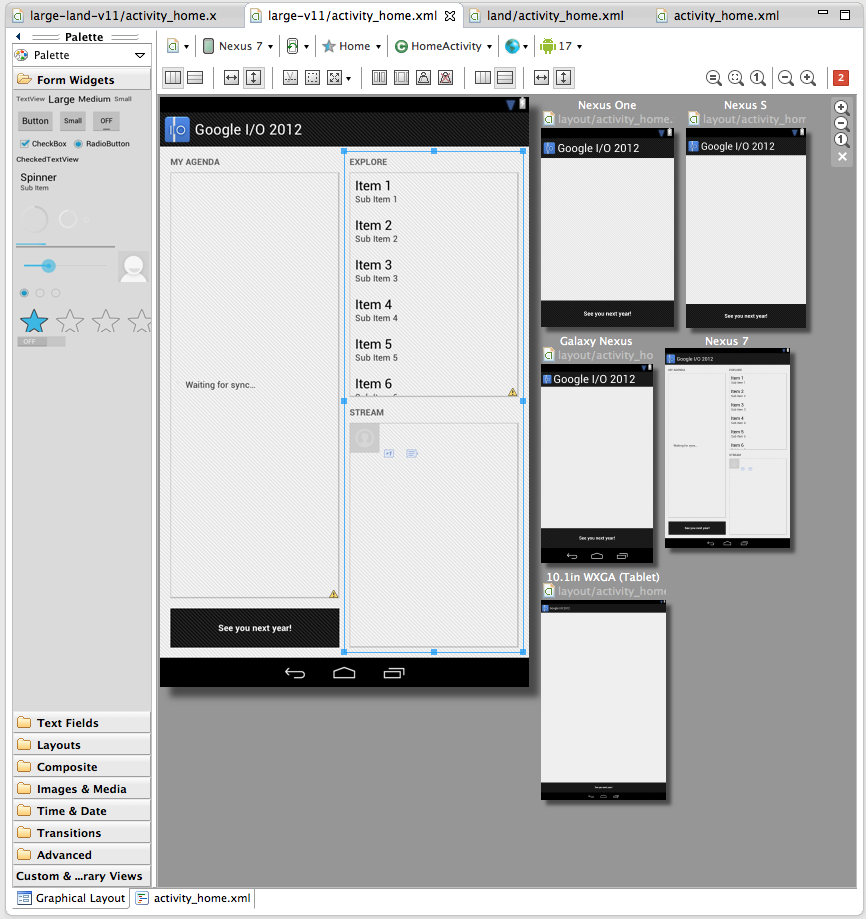
A new multi-configuration editor allows you to develop and prototype your UI across various orientations, screen sizes and locales. For example, while editing your layout in portrait mode, you can see if your edits aren't visible in the shorter landscape orientation. You can see previews for other screen sizes from small phones to large tablets, you can see previews for the layout using all the available language translations in your app, and so on. You can even see how the layout appears when it is included as a fragment in a different larger layout. Finally, Android allows you to create specialized layouts for any of these configurations, and the multi configuration editor shows you these overridden layouts.


Here is a screenshot of the layout editor showing one of the layouts from the Google I/O application, across a variety of screen sizes.


More app templates

Tools R21 brings three new app templates to help you to easily add new screens to your app. There’s a new full-screen activity for use as a photo or video viewer, a settings activity to handle basic user preferences and a login activity to capture username/password.


UI Automator Test Framework

One common approach to UI testing is to run tests manually and verify that the app is behaving as expected. UI Automator is a new software testing framework available in Tools R21 that provides you with tools to easily automate UI testing tasks. It provides a GUI tool to scan and analyze the UI components of an Android application (uiautomatorviewer), a library containing APIs to create customized functional UI tests, and an execution engine to automate and run the tests against multiple physical devices. UI Automator runs on Android 4.1 (API level 16) or higher. To learn more head over to the UI Testing documentation.


One-click SDK installer

New Android SDK developers now have a convenient way to download all the various SDK components like Tools, Platform Tools, Eclipse ADT, and the latest system image with a single click. Existing developers can continue to manage their SDK components and get updates through the SDK Manager.


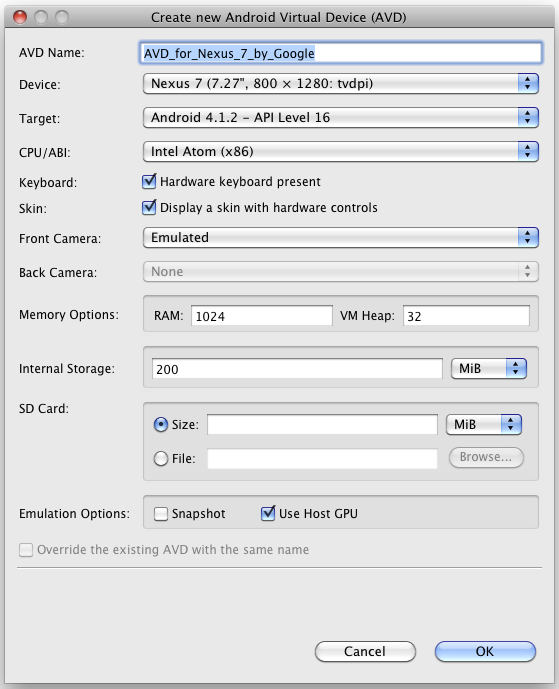
Revamped AVD creation dialog

The new dialog makes it easier to create Android Virtual Devices (AVDs) matching real device profiles. The AVDs will also appear in the layout editor to show you how the layouts will look.


More Lint rules

And to wrap things up there are 25 new lint rules which catch several common sources of bugs, for example deviations from Android design guide for icons, checks for mismanaged wakelocks, common sources of locale-related bugs and so on. So make sure you upgrade and let Lint loose on your projects before your next app update!


A minor bug-fix to the Android NDK is also available. For a complete list of what’s new, see the release notes for SDK Tools R21, ADT 21.0.0 and Android NDK R8c.


Android Design V2: Now with stencils


[This post is by Android designer Alex Faaborg, on behalf of the entire User Experience team. —Tim Bray]

When we initially released Android Design, by far the number one request we received was for us to release stencils as well. The fine folks on the Android User Experience team are pleased today to release some official Android Design stencils for your mockup-creating pleasure.

With these stencils you can now drag and drop your way to beautifully designed Ice Cream Sandwich (Android 4.0) applications, with grace and ease. The stencils feature the rich typography, colors, interactive controls, and icons found throughout Ice Cream Sandwich, along with some phone and tablet outlines to frame your meticulously crafted creations.

Currently we have stencils available for those venerable interactive design powerhouses Adobe® Fireworks®, and Omni® OmniGraffle® and we may expand to other applications® in the future. The source files for the various icons and controls are also available, created in Adobe® Photoshop®, and Adobe® Illustrator®. Here are the downloads.

We’ll be updating these stencils over time so, as always, please send in your feedback!

Happy mockup making,

— Your friendly Android Design Droids

Debugging Android JNI with CheckJNI

[This post is by Elliott Hughes, a Software Engineer on the Dalvik team — Tim Bray]

Although most Android apps run entirely on top of Dalvik, some use the Android NDK to include native code using JNI. Native code is harder to get right than Dalvik code, and when you have a bug, it’s often a lot harder to find and fix it. Using JNI is inherently tricky (there’s precious little help from the type system, for example), and JNI functions provide almost no run-time checking. Bear in mind also that the developer console’s crash reporting doesn’t include native crashes, so you don’t even necessarily know how often your native code is crashing.

What CheckJNI can do

To help, there’s CheckJNI. It can catch a number of common errors, and the list is continually increasing. In Gingerbread, for example, CheckJNI can catch all of the following kinds of error:

  • Arrays: attempting to allocate a negative-sized array.

  • Bad pointers: passing a bad jarray/jclass/jobject/jstring to a JNI call, or passing a NULL pointer to a JNI call with a non-nullable argument.

  • Class names: passing anything but the “java/lang/String” style of class name to a JNI call.

  • Critical calls: making a JNI call between a GetCritical and the corresponding ReleaseCritical.

  • Direct ByteBuffers: passing bad arguments to NewDirectByteBuffer.

  • Exceptions: making a JNI call while there’s an exception pending.

  • JNIEnv*s: using a JNIEnv* from the wrong thread.

  • jfieldIDs: using a NULL jfieldID, or using a jfieldID to set a field to a value of the wrong type (trying to assign a StringBuilder to a String field, say), or using a jfieldID for a static field to set an instance field or vice versa, or using a jfieldID from one class with instances of another class.

  • jmethodIDs: using the wrong kind of jmethodID when making a Call*Method JNI call: incorrect return type, static/non-static mismatch, wrong type for ‘this’ (for non-static calls) or wrong class (for static calls).

  • References: using DeleteGlobalRef/DeleteLocalRef on the wrong kind of reference.

  • Release modes: passing a bad release mode to a release call (something other than 0, JNI_ABORT, or JNI_COMMIT).

  • Type safety: returning an incompatible type from your native method (returning a StringBuilder from a method declared to return a String, say).

  • UTF-8: passing an invalid Modified UTF-8 byte sequence to a JNI call.

If you’ve written any amount of native code without CheckJNI, you’re probably already wishing you’d known about it. There’s a performance cost to using CheckJNI (which is why it isn’t on all the time for everybody), but it shouldn’t change the behavior in any other way.

Enabling CheckJNI

If you’re using the emulator, CheckJNI is on by default. If you’re working with an Android device, use the following adb command:

adb shell setprop debug.checkjni 1

This won’t affect already-running apps, but any app launched from that point on will have CheckJNI enabled. (Changing the property to any other value or simply rebooting will disable CheckJNI again.) In this case, you’ll see something like this in your logcat output the next time each app starts:

D Late-enabling CheckJNI

If you don’t see this, your app was probably already running; you just need to force stop it and start it again.

Example

Here’s the output you get if you return a byte array from a native method declared to return a String:

W JNI WARNING: method declared to return 'Ljava/lang/String;' returned '[B'
W failed in LJniTest;.exampleJniBug
I "main" prio=5 tid=1 RUNNABLE
I | group="main" sCount=0 dsCount=0 obj=0x40246f60 self=0x10538
I | sysTid=15295 nice=0 sched=0/0 cgrp=default handle=-2145061784
I | schedstat=( 398335000 1493000 253 ) utm=25 stm=14 core=0
I at JniTest.exampleJniBug(Native Method)
I at JniTest.main(JniTest.java:11)
I at dalvik.system.NativeStart.main(Native Method)
I
E VM aborting

Without CheckJNI, you’d just die via SIGSEGV, with none of this output to help you!

New JNI documentation

We’ve also recently added a page of JNI Tips that explains some of the finer points of JNI. If you write native methods, even if CheckJNI isn’t rejecting your code, you should still read that page. It covers everything from correct usage of the JavaVM and JNIEnv types, how to work with native threads, local and global references, dealing with Java exceptions in native code, and much more, including answers to frequently-asked JNI questions.

What CheckJNI can’t do

There are still classes of error that CheckJNI can’t find. Most important amongst these are misuses of local references. CheckJNI can spot if you stash a JNIEnv* somewhere and then reuse it on the wrong thread, but it can’t detect you stashing a local reference (rather than a global reference) and then reusing it in a later native method call. Doing so is invalid, but currently mostly works (at the cost of making life hard for the GC), and we’re still working on getting CheckJNI to spot these mistakes.

We’re hoping to have more checking, including for local reference misuse, in a future release of Android. Start using CheckJNI now, though, and you’ll be able to take advantage of our new checks as they’re added.

Memory Analysis for Android Applications

[This post is by Patrick Dubroy, an Android engineer who writes about programming, usability, and interaction on his personal blog. — Tim Bray]

The Dalvik runtime may be garbage-collected, but that doesn't mean you can ignore memory management. You should be especially mindful of memory usage on mobile devices, where memory is more constrained. In this article, we're going to take a look at some of the memory profiling tools in the Android SDK that can help you trim your application's memory usage.

Some memory usage problems are obvious. For example, if your app leaks memory every time the user touches the screen, it will probably trigger an OutOfMemoryError eventually and crash your app. Other problems are more subtle, and may just degrade the performance of both your app (as garbage collections are more frequent and take longer) and the entire system.

Tools of the trade

The Android SDK provides two main ways of profiling the memory usage of an app: the Allocation Tracker tab in DDMS, and heap dumps. The Allocation Tracker is useful when you want to get a sense of what kinds of allocation are happening over a given time period, but it doesn't give you any information about the overall state of your application's heap. For more information about the Allocation Tracker, see the article on Tracking Memory Allocations. The rest of this article will focus on heap dumps, which are a more powerful memory analysis tool.

A heap dump is a snapshot of an application's heap, which is stored in a binary format called HPROF. Dalvik uses a format that is similar, but not identical, to the HPROF tool in Java. There are a few ways to generate a heap dump of a running Android app. One way is to use the Dump HPROF file button in DDMS. If you need to be more precise about when the dump is created, you can also create a heap dump programmatically by using the android.os.Debug.dumpHprofData() function.

To analyze a heap dump, you can use a standard tool like jhat or the Eclipse Memory Analyzer (MAT). However, first you'll need to convert the .hprof file from the Dalvik format to the J2SE HPROF format. You can do this using the hprof-conv tool provided in the Android SDK. For example:

hprof-conv dump.hprof converted-dump.hprof

Example: Debugging a memory leak

In the Dalvik runtime, the programmer doesn't explicitly allocate and free memory, so you can't really leak memory like you can in languages like C and C++. A "memory leak" in your code is when you keep a reference to an object that is no longer needed. Sometimes a single reference can prevent a large set of objects from being garbage collected.

Let's walk through an example using the Honeycomb Gallery sample app from the Android SDK. It's a simple photo gallery application that demonstrates how to use some of the new Honeycomb APIs. (To build and download the sample code, see the instructions.) We're going to deliberately add a memory leak to this app in order to demonstrate how it could be debugged.

Imagine that we want to modify this app to pull images from the network. In order to make it more responsive, we might decide to implement a cache which holds recently-viewed images. We can do that by making a few small changes to ContentFragment.java. At the top of the class, let's add a new static variable:

private static HashMap<String,Bitmap> sBitmapCache = new HashMap<String,Bitmap>();

This is where we'll cache the Bitmaps that we load. Now we can change the updateContentAndRecycleBitmap() method to check the cache before loading, and to add Bitmaps to the cache after they're loaded.

void updateContentAndRecycleBitmap(int category, int position) {
if (mCurrentActionMode != null) {
mCurrentActionMode.finish();
}

// Get the bitmap that needs to be drawn and update the ImageView.

// Check if the Bitmap is already in the cache
String bitmapId = "" + category + "." + position;
mBitmap = sBitmapCache.get(bitmapId);

if (mBitmap == null) {
// It's not in the cache, so load the Bitmap and add it to the cache.
// DANGER! We add items to this cache without ever removing any.
mBitmap = Directory.getCategory(category).getEntry(position)
.getBitmap(getResources());
sBitmapCache.put(bitmapId, mBitmap);
}
((ImageView) getView().findViewById(R.id.image)).setImageBitmap(mBitmap);
}

I've deliberately introduced a memory leak here: we add Bitmaps to the cache without ever removing them. In a real app, we'd probably want to limit the size of the cache in some way.

Examining heap usage in DDMS

The Dalvik Debug Monitor Server (DDMS) is one of the primary Android debugging tools. DDMS is part of the ADT Eclipse plug-in, and a standalone version can also be found in the tools/ directory of the Android SDK. For more information on DDMS, see Using DDMS.

Let's use DDMS to examine the heap usage of this app. You can start up DDMS in one of two ways:

  • from Eclipse: click Window > Open Perspective > Other... > DDMS
  • or from the command line: run ddms (or ./ddms on Mac/Linux) in the tools/ directory

Select the process com.example.android.hcgallery in the left pane, and then click the Show heap updates button in the toolbar. Then, switch to the VM Heap tab in DDMS. It shows some basic stats about our heap memory usage, updated after every GC. To see the first update, click the Cause GC button.

We can see that our live set (the Allocated column) is a little over 8MB. Now flip through the photos, and watch that number go up. Since there are only 13 photos in this app, the amount of memory we leak is bounded. In some ways, this is the worst kind of leak to have, because we never get an OutOfMemoryError indicating that we are leaking.

Creating a heap dump

Let's use a heap dump to track down the problem. Click the Dump HPROF file button in the DDMS toolbar, choose where you want to save the file, and then run hprof-conv on it. In this example, I'll be using the standalone version of MAT (version 1.0.1), available from the MAT download site.

If you're running ADT (which includes a plug-in version of DDMS) and have MAT installed in Eclipse as well, clicking the “dump HPROF” button will automatically do the conversion (using hprof-conv) and open the converted hprof file into Eclipse (which will be opened by MAT).

Analyzing heap dumps using MAT

Start up MAT and load the converted HPROF file we just created. MAT is a powerful tool, and it's beyond the scope of this article to explain all it's features, so I'm just going to show you one way you can use it to detect a leak: the Histogram view. The Histogram view shows a list of classes sortable by the number of instances, the shallow heap (total amount of memory used by all instances), or the retained heap (total amount of memory kept alive by all instances, including other objects that they have references to).

If we sort by shallow heap, we can see that instances of byte[] are at the top. As of Android 3.0 (Honeycomb), the pixel data for Bitmap objects is stored in byte arrays (previously it was not stored in the Dalvik heap), and based on the size of these objects, it's a safe bet that they are the backing memory for our leaked bitmaps.

Right-click on the byte[] class and select List Objects > with incoming references. This produces a list of all byte arrays in the heap, which we can sort based on Shallow Heap usage.

Pick one of the big objects, and drill down on it. This will show you the path from the root set to the object -- the chain of references that keeps this object alive. Lo and behold, there's our bitmap cache!

MAT can't tell us for sure that this is a leak, because it doesn't know whether these objects are needed or not -- only the programmer can do that. In this case, the cache is using a large amount of memory relative to the rest of the application, so we might consider limiting the size of the cache.

Comparing heap dumps with MAT

When debugging memory leaks, sometimes it's useful to compare the heap state at two different points in time. To do this, you'll need to create two separate HPROF files (don't forget to convert them using hprof-conv).

Here's how you can compare two heap dumps in MAT (it's a little complicated):

  1. Open the first HPROF file (using File > Open Heap Dump).
  2. Open the Histogram view.
  3. In the Navigation History view (use Window > Navigation History if it's not visible), right click on histogram and select Add to Compare Basket.
  4. Open the second HPROF file and repeat steps 2 and 3.
  5. Switch to the Compare Basket view, and click Compare the Results (the red "!" icon in the top right corner of the view).

Conclusion

In this article, I've shown how the Allocation Tracker and heap dumps can give you get a better sense of your application's memory usage. I also showed how The Eclipse Memory Analyzer (MAT) can help you track down memory leaks in your app. MAT is a powerful tool, and I've only scratched the surface of what you can do with it. If you'd like to learn more, I recommend reading some of these articles:

Traceview War Story

I recently took my first serious look at Traceview, and it occurred to me, first, that there are probably a few other Android developers who haven’t used it and, second, that this is an opportunity to lecture sternly on one of my favorite subjects: performance improvement and profiling. This is perhaps a little bit Android-101; If you already know all about Traceview, you can stop here and go back to coding.

Making Apps Fast

Here’s a belief that I think I share with most experienced developers: For any app that is even moderately complex, you’re not smart enough to predict what the slow parts are going to be, because nobody is smart enough to predict where software bottlenecks will turn up.

So the smart way to write a fast app is to build it in the simplest way that could possibly work, avoiding egregiously-stupid thing like order-N-squared algorithms and doing I/O on the Android UI thread. Who knows, it might be fast enough, and then you’re done!

If it isn’t fast enough, don’t guess why. Measure it and find out, using a profiler. Actually I’ve been known to do this, when backed into a corner, using things like System.err.println("Entered at" + System.currentTimeMillis()); Fortunately, Android comes with a reasonably decent profiler, so you don’t have to get ugly like that.

Case Study: LifeSaver 2

I have this little utility in Android Market called LifeSaver 2, the details are on my personal blog. At one point, it reads the SMS and phone-call logs out of the system and persists them in a JSON text file on the SD card. Since this is kind of slow, it shows a nice dynamic progress bar. It occurred to me to wonder why it was kind of slow to write a few hundred records into a text file on a device that, after all, has a gigahertz processor.

Somebody who foolishly disregarded my advice above might assume that the slowdown had to be due to the ContentProvider Cursor machinery reading the system logs, or failing that, the overhead of writing to the SD card. A wiser person would instrument the code and find out. Let’s do that.

Turning On Tracing

I went into Saver.java and bracketed the code in its run() method like so:

       public void run() {

android.os.Debug.startMethodTracing("lsd");

// ... method body elided

android.os.Debug.stopMethodTracing();
}

The first call turns tracing on, the argument "lsd" (stands for Life Saver Debug, of course) tells the system to put the trace log in /sdcard/lsd.trace. Remember that doing this means you have to add the WRITE_EXTERNAL_STORAGE permission so you can save the trace info; don‘t forget to remove that before you ship.

[Update:] Android engineer Xavier Ducrohet writes to remind me: “DDMS has a start/stop profiling button in the ‘device view’. Upon clicking stop it launches TraceView with the trace file. This is not as fine grained as putting start/stopMethodTracing in your code but can be quite useful. For VMs earlier than froyo, the permission is required as well (DDMS basically automate getting the trace from the sd card and saving it locally before calling traceview). For Froyo+ VMs, the VM is able to send the trace file through the JDWP connection and the permission is not needed anymore (which is really useful).” Thanks, Xav!

Then you run your app, then you copy the output over to your computer, and fire up Traceview.

540> adb pull /sdcard/lsd.trace
541> traceview lsd

At this point, you will have noticed three things. First, turning tracing on really slows down your app. Second, the tracefile is big; in this case, 8.6M for a run that took like four seconds. Third, that traceview looks pretty cool.

The bars across the top show the app’s threads and how they dealt out the time; since the Nexus One is single-threaded CPU, they have to take turns. Let’s zero in on one 100-msec segment.

The top line is where my app code is running (the red segment is GC happening), the middle line is the UI thread and the bursts of activity are the ProgressBar updating, and I have no idea what the third thread, named HeapWorker, does, but it doesn’t seem a major contributor to the app’s runtime, so let’s ignore it.

The bottom of the screen is where the really interesting data is; it shows which of your methods burned the time, and can be sorted in a bunch of different ways. Let’s zero in on the first two lines.

Translated into English, this tells us that the top-level routine consumed 100% of the time if you include everything it called (well, yeah), but only 0.9% of the time itself. The next line suddenly starts to get real interesting: java.io.PrintStream.println(Object) and whatever it calls are using 65.2% of the app’s time. This is the code that writes the JSON out to the SD card. Right away, we know that apparently the task of pulling the data out of the phone’s ContentProviders doesn’t seem to be very expensive; it’s the output that’s hurting.

Can we conclude that the app is limited by the sluggish write performance of the SD card? Let’s drill down, which is done in the most obvious point-and-click way imaginable.

Ooh, there’s a nasty surprise. Of course, println calls (in effect) toString() on all its arguments. It looks like turning the arguments to strings is taking over half the time, before it even dispatches from println(Object) to println(String).

I’ll skip the step of drilling down into println(String) but it does suggest that yes, there is some slow I/O happening there, to the SD card. But let’s look inside that String.valueOf() call.

There’s your smoking pistol. It turns out that org.json.JSONObject.toString() is what we professional programmers call a, well, this is a family-friendly operation so I won’t go there. You can poke around inside it, but it’s just depressing.

What you can do, however, is sort all the routines by their “Exclusive” times, as in the number of CPU circles burned right there in the routine. Here are all of them that use 1% or more of the total execution time.

There’s a little bit of GC and Android framework View-wrangling stuff in there, but the display is dominated by org.jason and java.lang.StringBuilder code.

The Conclusion

The real conclusion is that in the case of this app, I actually don’t care about the performance. A user runs it a grand total of two times, once on the old phone and once on the new phone, and it’s got lots of eye candy, so I just don’t think there’s a problem.

If I did want to speed this up, it’s obvious what to do. First, either stop using JSON, or find a cheaper way to serialize it. Second, do fewer println() calls; glom the data together in one big buffer and just blast it out with a single I/O call. But, and here’s the key point, if I’d guessed where the bottlenecks were, I’d have been wrong, mostly.

Traceview is a nice tool, and if you don’t already know it, you owe it to yourself to learn it.