Showing posts with label Android Studio. Show all posts

Understanding APK packaging in Android Studio 2.2

Posted by Wojtek KaliciƄski, Android Developer Advocate


Android Studio 2.2 launched recently with href="http://android-developers.blogspot.com/2016/09/android-studio-2-2.html">many
new and improved features. Some of the changes are easy to miss because they
happened under the hood in the Android Gradle plugin, such as the newly
rewritten integrated APK packaging and signing step.


APK Signature Scheme v2


With the introduction of the new href="https://source.android.com/security/apksigning/v2.html">APK Signature
Scheme v2 in Android 7.0 Nougat, we decided to rewrite how assembling APKs
works in the Android Gradle plugin. You can read all about the low-level
technical details of v2 signatures in the href="https://source.android.com/security/apksigning/v2.html">documentation,
but here's a quick tl;dr summary of the info you need as an Android app
developer:


  • The cryptographic signature of the APK that is used to verify its integrity
    is now located immediately before the ZIP Central Directory.
  • The signature is computed and verified over the binary contents of the whole
    APK file, as opposed to decompressed file contents of each file in the archive
    in v1.
  • An APK can be signed by both v1 and v2 signatures at the same time, so it
    remains backwards compatible with previous Android releases.


Why introduce this change to how Android verifies APKs? Firstly, for enhanced
security and extensibility of this new signing format, and secondly for
performance - the new signatures take significantly less time to verify on the
device (no need for costly decompression), resulting in faster app installation
times.


The consequence of this new signing scheme, however, is that there are new
constraints on the APK creation process. Since only uncompressed file contents
were verified in v1, that allowed for quite a lot of modifications to be made
after APK signing - files could be moved around or even recompressed. In fact,
the zipalign tool which was part of the build process did exactly
that - it was used to align ZIP entries on correct byte boundaries for improved
runtime performance.


Because v2 signatures verify all bytes in the archive and not individual ZIP
entries, running zipalign is no longer possible after
signing
. That's why compression, aligning and signing now happens in a
single, integrated step of the build process.


If you have any custom tasks in your build process that involve tampering with
or post-processing the APK file in any way, please make sure you disable them or
you risk invalidating the v2 signature and thus making your APKs incompatible
with Android 7.0 and above.


Should you choose to do signing and aligning manually (such as from the command
line), we offer a new tool in the Android SDK, called href="https://developer.android.com/studio/command-line/apksigner.html?utm_campaign=android_discussion_api_111016&utm_source=anddev&utm_medium=blog">apksigner,
that provides both v1 and v2 APK signing and verification. Note that you need to
run zipalign before running apksigner
if you are using v2 signatures. Also remember the jarsigner tool
from the JDK is not compatible with Android v2 signatures, so you can't use it
to re-sign your APKs if you want to retain the v2 signature.


In case you want to disable adding v1 or v2 signatures when building with the
Android Gradle plugin, you can add these lines to your href="https://google.github.io/android-gradle-dsl/current/com.android.build.gradle.internal.dsl.SigningConfig.html">signingConfig
section in build.gradle:

class="prettyprint">v1SigningEnabled false
v2SigningEnabled false


Note: both signing schemes are enabled by default in Android Gradle plugin 2.2.


Release builds for smaller APKs


We took this opportunity when rewriting the packager to make some optimizations
to the size of release APKs, resulting in faster downloads, href="http://android-developers.blogspot.co.uk/2016/07/improvements-for-smaller-app-downloads.html">smaller
delta updates on the Play Store, and less wasted space on the device. Here
are some of the changes we made:


  • Files in the archive are now sorted to minimize differences between APK
    builds.
  • All file timestamps and metadata are zeroed out.
  • Level 6 and level 9 compression is checked for all files in parallel and the
    optimal one is used, i.e. if L9 provides little benefit in terms of size, then
    L6 may be chosen for better performance
  • Native libraries are stored uncompressed and page aligned in the APK. This
    brings support for the android:extractNativeLibs="false" option
    from Android 6.0 Marshmallow and lets applications use less space on the device
    as well as generate smaller updates on the Play Store
  • Zopfli compression is not used to better support Play Store update
    algorithms. It is not recommended to recompress your APKs with Zopfli.
    Pre-optimizing individual resources such as PNG files in your projects is still
    fine and recommended.


These changes help make your releases as small as possible so that users can
download and update your app even on a slower connection or on less capable
devices. But what about debug builds?


Debug builds for installation speed


When developing apps you want to keep the iteration cycle fast - change code,
build, and deploy on a connected device or emulator. Since Android Studio 2.0
we've been working to make all the steps as fast as possible. With Instant Run
we're now able to update only the changed code and resources during runtime,
while the new Emulator brings multi-processor support and faster ADB speeds for
quicker APK transfer and installation. Build improvements can cut that time even
further and in Android Studio 2.2 we're introducing incremental packaging and
parallel compression for debug builds. Together with other features like
selectively packaging resources for the target device density and ABI this will
make your development even faster.


A word of caution: the APK files created for Instant Run or by invoking a debug
build are not meant for distribution on the Play Store! They contain additional
instrumentation code for Instant Run and are missing resources for device
configurations other than the one that was connected when you started the build.
Make sure you only distribute release versions of the APK which you can create
using the Android Studio href="https://developer.android.com/studio/publish/app-signing.html?utm_campaign=android_discussion_api_111016&utm_source=anddev&utm_medium=blog#release-mode">Generate
Signed APK command or the assembleRelease Gradle task.


Android Studio 2.2


By Jamal Eason, Product
Manager, Android


Android Studio 2.2 is available to href="https://developer.android.com/studio/index.html?utm_campaign=android studio_launch_2.2_091916&utm_source=anddev&utm_medium=blog">download today.
Previewed at Google I/O 2016, Android Studio 2.2 is the latest release of our
IDE used by millions of Android developers around the world.


Packed with enhancements, this release has three major themes: speed, smarts,
and Android platform support. Develop faster with features such as the new
Layout Editor, which makes creating an app user interface quick and intuitive.
Develop smarter with our new APK analyzer, enhanced Layout Inspector, expanded
code analysis, IntelliJ’s 2016.1.3 features and much more. Lastly, as the
official IDE for Android app development, Android Studio 2.2 includes support
for all the latest developer features in Android 7.0 Nougat, like href="https://developer.android.com/studio/intro/index.html?utm_campaign=android studio_launch_2.2_091916&utm_source=anddev&utm_medium=blog#code_completion">code
completion to help you add Android platform features like href="https://developer.android.com/about/versions/nougat/android-7.0.html?utm_campaign=android studio_launch_2.2_091916&utm_source=anddev&utm_medium=blog#multi-window_support">Multi-Window
support, href="https://developer.android.com/about/versions/nougat/android-7.0.html?utm_campaign=android studio_launch_2.2_091916&utm_source=anddev&utm_medium=blog#tile_api">Quick
Settings API, or the redesigned href="https://developer.android.com/about/versions/nougat/android-7.0.html?utm_campaign=android studio_launch_2.2_091916&utm_source=anddev&utm_medium=blog#notification_enhancements">Notifications,
and of course, the built-in href="https://developer.android.com/studio/run/emulator.html?utm_campaign=android studio_launch_2.2_091916&utm_source=anddev&utm_medium=blog">Android
Emulator to test them all out.


In this release, we evolved the Android Frameworks and the IDE together to
create the Constraint Layout. This powerful new layout manager helps you design
large and complex layouts in a flat and streamlined hierarchy. The
ConstraintLayout integrates into your app like a standard Android
support library, and was built in parallel with the new Layout Editor.


Android Studio 2.2 includes 20+ new features across every major phase of the
development process: design, develop, build, & test. From designing UIs with
the new ConstraintLayout, to developing C++ code with the Android
NDK, to building with the latest Jack compliers, to creating Espresso test cases
for your app, Android Studio 2.2 is the update you do not want to miss. Here’s
more detail on some of the top highlights:


Design


  • Layout Editor: Creating Android app user interfaces is now
    easier with the new user interface designer. Quickly construct the structure of
    your app UI with the new blueprint mode and adjust the visual attributes of each
    widget with new properties panel. href="https://developer.android.com/studio/write/layout-editor.html?utm_campaign=android studio_launch_2.2_091916&utm_source=anddev&utm_medium=blog">Learn
    more.


Layout Editor


  • Constraint Layout: This new layout is a flexible layout
    manager for your app that allows you to create dynamic user interfaces without
    nesting multiple layouts. It is backwards compatible all the way back to Android
    API level 9 (Gingerbread). ConstraintLayout works best with the new Layout
    Editor in Android Studio 2.2. href="https://developer.android.com/training/constraint-layout/index.html?utm_campaign=android studio_launch_2.2_091916&utm_source=anddev&utm_medium=blog">Learn
    more.


ConstraintLayout


Develop


  • Improved C++ Support: You can now use href="https://developer.android.com/studio/projects/add-native-code.html?utm_campaign=android studio_launch_2.2_091916&utm_source=anddev&utm_medium=blog">CMake
    or ndk-build to compile your C++ projects from Gradle. Migrating projects
    from CMake build systems to Android Studio is now seamless. You will also find
    C++ support in the new project wizard in Android Studio, plus a number of bug
    fixes to the C++ edit and debug experience. href="https://developer.android.com/studio/projects/add-native-code.html?utm_campaign=android studio_launch_2.2_091916&utm_source=anddev&utm_medium=blog">Learn
    more.


C++ Code Editing & CMake Support


  • Samples Browser: Referencing href="http://developer.android.com/samples/index.html?utm_campaign=android studio_launch_2.2_091916&utm_source=anddev&utm_medium=blog">Android sample code
    is now even easier with Android Studio 2.2. Within the code editor window, find
    occurrences of your app code in Google Android sample code to help jump start
    your app development. Learn more.


Sample Code Menu


Build


  • Instant Run Improvements: Introduced in Android Studio 2.0,
    href="https://developer.android.com/studio/run/index.html?utm_campaign=android studio_launch_2.2_091916&utm_source=anddev&utm_medium=blog#instant-run">Instant
    Run is our major, long-term investment to make Android development as fast
    and lightweight. Since launch, it has significantly improved the edit, build,
    run iteration cycles for many developers. In this release, we have made many
    stability and reliability improvements to Instant Run. If you have previously
    disabled Instant Run, we encourage you to re-enable it and let us know if you
    come across further issues. (Settings → Build, Execution, Deployment → Instant
    Run [Windows/Linux] , Preferences → Build, Execution, Deployment → Instant Run
    [OS X]). For details on the fixes that we have made, see the href="https://developer.android.com/studio/releases/index.html?utm_campaign=android studio_launch_2.2_091916&utm_source=anddev&utm_medium=blog">Android Studio
    2.2 release notes.


Enable Instant Run


  • APK Analyzer: Easily inspect the contents of your APKs to
    understand the size contribution of each component. This feature can be helpful
    when debugging href="https://developer.android.com/studio/build/multidex.html?utm_campaign=android studio_launch_2.2_091916&utm_source=anddev&utm_medium=blog">multi-dex
    issues. Plus, with the APK Analyzer you can compare two versions of an APK. href="https://developer.android.com/studio/build/apk-analyzer.html?utm_campaign=android studio_launch_2.2_091916&utm_source=anddev&utm_medium=blog">Learn
    more.


APK Analyzer


  • Build cache (Experimental): We are continuing our
    investments to improve build speeds with the introduction of a new experimental
    build cache that will help reduce both full and incremental build times. Just
    add android.enableBuildCache=true to your
    gradle.properties file. href="http://tools.android.com/tech-docs/build-cache">Learn more.


Build Cache Setting


Test


  • Virtual Sensors in the Android Emulator: The Android
    Emulator now includes a new set of virtual sensors controls. With the new UI
    controls, you can now test href="https://developer.android.com/guide/topics/sensors/sensors_overview.html?utm_campaign=android studio_launch_2.2_091916&utm_source=anddev&utm_medium=blog">Android
    Sensors such as Accelerometer, Ambient Temperature, Magnetometer and more.
    Learn
    more
    .


Android Emulator Virtual Sensors


  • Espresso Test Recorder (Beta): The Espresso Test Recorder
    lets you easily create UI tests by recording interactions with your app; it then
    outputs the href="https://developer.android.com/topic/libraries/testing-support-library/index.html?utm_campaign=android studio_launch_2.2_091916&utm_source=anddev&utm_medium=blog#Espresso">UI
    test code for you. You record your interactions with a device and add
    assertions to verify UI elements in particular snapshots of your app. Espresso
    Test Recorder then takes the saved recording and automatically generates a
    corresponding UI test. You can run the test locally, on your continuous
    integration server, or using href="https://developer.android.com/training/testing/unit-testing/instrumented-unit-tests.html?utm_campaign=android studio_launch_2.2_091916&utm_source=anddev&utm_medium=blog#run-ctl">Firebase
    Test Lab for Android. href="https://developer.android.com/studio/test/espresso-test-recorder.html">Learn
    more.


Espresso Test Recorder


  • GPU Debugger (Beta): The GPU Debugger is now in Beta. You
    can now capture a stream of OpenGL ES commands on your Android device and then
    replay it from inside Android Studio for analysis. You can also fully inspect
    the GPU state of any given OpenGL ES command to better understand and debug your
    graphical output. href="https://developer.android.com/studio/debug/am-gpu-debugger.html?utm_campaign=android studio_launch_2.2_091916&utm_source=anddev&utm_medium=blog">Lean
    more.


GPU Debugger


To recap, Android Studio 2.2 includes these major features and more:


Design

  • href="https://developer.android.com/studio/write/layout-editor.html?utm_campaign=android studio_launch_2.2_091916&utm_source=anddev&utm_medium=blog">Layout
    Editor
  • href="https://developer.android.com/training/constraint-layout/index.html?utm_campaign=android studio_launch_2.2_091916&utm_source=anddev&utm_medium=blog">Constraint
    Layout
  • Layout
    Inspector
    (Experimental)
  • href="https://developer.android.com/studio/write/vector-asset-studio.html?utm_campaign=android studio_launch_2.2_091916&utm_source=anddev&utm_medium=blog">PSD
    File Support in Vector Asset Studio


Develop


  • href="https://developer.android.com/studio/write/firebase.html">Firebase
    Plugin
  • Updated Code
    Analysis & Lint checks

  • href="https://developer.android.com/studio/intro/accessibility.html?utm_campaign=android studio_launch_2.2_091916&utm_source=anddev&utm_medium=blog">Enhanced
    accessibility support
  • Improved C++
    Support Edit & Debugging

  • href="https://confluence.jetbrains.com/display/IDEADEV/IntelliJ+IDEA+2016.1.3+Release+Notes">IntelliJ
    2016.1.3 platform update
  • Samples Browser
  • Improved Font Rendering

Build

  • href="https://developer.android.com/guide/platform/j8-jack.html?utm_campaign=android studio_launch_2.2_091916&utm_source=anddev&utm_medium=blog#configuration">Jack
    Compiler Improvements
  • Java 8
    Language Support

  • href="https://developer.android.com/studio/projects/add-native-code.html?utm_campaign=android studio_launch_2.2_091916&utm_source=anddev&utm_medium=blog">C++
    ndk-build or CMake
  • href="http://android-developers.blogspot.com/2016/05/android-studio-22-preview-new-ui.html">Merged
    Manifest Viewer
  • Build cache
    (Experimental)
  • OpenJDK Support
  • Instant Run Improvements


Test


  • href="https://developer.android.com/studio/test/espresso-test-recorder.html?utm_campaign=android studio_launch_2.2_091916&utm_source=anddev&utm_medium=blog">Espresso
    Test Recorder (Beta)
  • APK
    Analyzer

  • href="https://developer.android.com/studio/debug/am-gpu-debugger.html?utm_campaign=android studio_launch_2.2_091916&utm_source=anddev&utm_medium=blog">GPU
    Debugger (Beta)
  • href="https://developer.android.com/studio/run/emulator.html?utm_campaign=android studio_launch_2.2_091916&utm_source=anddev&utm_medium=blog#extended">Virtual
    Sensors in the Android Emulator


Learn more about Android Studio 2.2 by reviewing the href="https://developer.android.com/studio/releases/index.html?utm_campaign=android studio_launch_2.2_091916&utm_source=anddev&utm_medium=blog">release notes
and the href="http://android-developers.blogspot.com/2016/05/android-studio-22-preview-new-ui.html">preview
blog post.


Getting Started


Download


If you are using a previous version of Android Studio, you can check for updates
on the Stable channel from the navigation menu (Help → Check for Update
[Windows/Linux] , Android Studio → Check for Updates [OS X]). You can also
download Android Studio 2.2 from the official href="https://developer.android.com/studio/index.html?utm_campaign=android studio_launch_2.2_091916&utm_source=anddev&utm_medium=blog">download page. To
take advantage of all the new features and improvements in Android Studio, you
should also update to the Android Gradle plugin version to 2.2.0 in your current
app project.


Next Release


We would like to thank all of you in the Android Developer community for your
work on this release. We are grateful for your contributions, your ongoing
feedback which inspired the new features in this release, and your highly active
use on canary and beta builds filing bugs. We all wanted to make Android Studio
2.2 our best release yet, with many stability and performance fixes in addition
to the many new features. For our next release, look for even more; we want to
work hard to address feedback and keep driving up quality and stability on
existing features to make you productive.


We appreciate any feedback on things you like, issues or features you would like
to see. Connect with us -- the Android Studio development team -- on our href="https://plus.google.com/103342515830390186255">Google+ page or on href="http://www.twitter.com/androidstudio">Twitter.


What's New in Android Studio 2.2


Android Studio Application Development

Android Studio Application Development

Create visually appealing applications using the new IntelliJ IDE Android Studio
Overview
  • Familiarize yourself with Android Studio IDE
  • Enhance the user interface for your app using the graphical editor feature
  • Explore the various features involved in developing an android app and implement them
In Detail
Mobile apps have become extremely popular over the last few years and offer a great opportunity for developers. Android is now one of the most popular mobile systems in the world. The new Android Studio IDE has introduced a specialized development environment, welcomed by the emerging Android community, which is perfect for the development of apps.
"Android Studio Application Development" is a practical guide that will show you how to develop and build Android apps using this new, integrated development environment. Following a tutorial approach, this book will progress from the basics features up until the steps to build for release, using real world examples. This book is a must have for every Android app developer evangelist.
Our book explores the Android Studio development environment in-depth, taking you through the necessary steps to create an app, test it, and prepare it for release. First, you will learn how to use the code editor in order to increase your productivity, and to easily create the screens of your app. Then, this book will show you how to debug your app and examine its performance using the most important additional tools within Android Studio: Android SDK tools. We will also take a look at the existing Google Play Services and how they can be integrated into your app.
Finally, it is important for a developer to be able to search for any help they might need. This book provides a vast help section which covers online documentation, updates, and FAQs.
What you will learn from this book
  • Install Android Studio and configure the Android Software Development Kit
  • Create your first project and explore its structure
  • Improve your productivity while programming, by getting the best from the code editor
  • Design the user interface and learn how to handle user events
  • Integrate the Google Play Services into your app
  • Test your app using the emulator and learn how to manage the virtual devices
  • Run and debug your app
  • Monitor your app whilst it is running and improve its performance
  • Build your app for release
Approach
A practical guide, which will show you how to create Android applications using the new Google official IDE, Android Studio.
Who this book is written for
If you are a developer who wants to learn the key features of Android Studio, and learn how to create their first app, this book is ideal for you! Developers interested in this book should be familiar with the object- oriented programming paradigm, and the Java programming language. It is also recommended that you understand the main characteristics of the Android mobile system.

assets folder in Android Studio

Android Studio is a new Android development environment based on IntelliJ IDEA, Gradle-based build support. It have different project structure.

In Eclipse, assets is in /assets folder under your project. In Android Studio, it is in /src/main/assets. In both Eclipse and Android Studio, /assets have the same level of /res folder.

Compare with the exercise of "Embed html using Google Maps JavaScript API v3 in Android App", where /assets/simplemap.html is a asset file of HTML. In Android Studio, it in /src/main/assets/simplemap.html. In both case, it can be accessed with "file:///android_asset/simplemap.html".

assets folder in Android Studio


reference: Gradle Plugin User Guide > Project Structure

Adding a Backend to Your App In Android Studio

Posted by Sachin Kotwani, Google Cloud Platform team

Android Studio lets you easily add a cloud backend to your application, right from your IDE. A backend allows you to implement functionality such as backing up user data to the cloud, serving content to client apps, real-time interactions, sending push notifications through Google Cloud Messaging for Android (GCM), and more. Additionally, having your application’s backend hosted on Google App Engine means that you can focus on what the cloud application does, without having to worry about administration, reliability or scalability.


When you create a backend using Android Studio, it generates a new App Engine application under the same project, and gives your Android application the necessary libraries and a sample activity to interact with that backend. Support for GCM is built-in, making it easy to sync data across multiple devices. Once you've generated the project, you can build and run your client and server code together, in a single environment, and even deploy your backend code right from Android Studio.


In this post we’ll focus on how to get started with the basic setup. From there it's easy to extend the basic setup to meet your needs.


Preliminary setup


Before you get started, make sure you take care of these tasks first:


  • Download Android Studio if you haven’t done so already and set it up.

  • Make sure you have an application project set up in Android Studio. You can use any working app that you want to integrate with your backend, even a sample app.

  • If you'll be running the app on an emulator, download the Google APIs Addon from the SDK Manager and run your app on that image.


  • Create a Google Cloud Platform project: In the Cloud Console, create a new project (or reuse an old one) and make note of the Project ID. Click on the words “Project ID” on the top left to toggle to the Project Number. Copy this as well.

  • Enable GCM and obtain API Key: In the Cloud Console, click on APIs and turn on the Google Cloud Messaging for Android API. Then, click on the “Register App” button on the top left, enter a name for the app, then select “Android” and “Accessing APIs via a web server”. In the resulting screen, expand the “Server Key” box and copy the API key.


1. Generate an App Engine project


In Android Studio, open an existing Android application that you want to modify, or create a new one. Select the Android app module under the Project node. Then click Tools > Google Cloud Endpoints > Create App Engine Backend.


In the wizard, enter the Project ID, Project Number, and API Key of your Cloud project.


This will create:


  • An App Engine project which contains the backend application source

  • An endpoints module with a RegisterActivity class, related resources, and client libraries for the Android app to communicate with the backend


The generated App Engine application (<app_name>-AppEngine) is an Apache Maven-based project. The Maven pom.xml file takes care of downloading all the dependencies, including the App Engine SDK. This module also contains the following:


  • A Google Cloud Endpoint (DeviceInfoEndpoint.java, auto-generated from DeviceInfo.java) that your Android app will “register” itself through. Your backend will use that registration info to send a push notification to the device.

  • A sample endpoint, MessageEndpoint.java, to list previously sent GCM messages and send new ones.

  • A starter web frontend application (index.html in webapp directory) that will show all the devices that have registered with your service, and a form to send them a GCM notification.


The endpoints module (<app_name>-endpoints) generated for you contains the classes and libraries needed by the Android application to interact with the backend:


  • A RegisterActivity.java class that, when invoked, will go through the GCM registration flow and also register itself with the recently created backend through DeviceInfoEndpoint.

  • Client libraries, so that the application can talk to the backend using an object rather than directly using raw REST calls.

  • XML files related to the newly created activity.


2. Add GCM registration to your app


In your Android application, you can call RegisterActivity whenever you want the registration to take place (for example, from within the onCreate() method of your main activity.


...
import android.content.Intent;
...

@Override
protected void onCreate(Bundle savedInstanceState) {
...
Intent intent = new Intent(this, RegisterActivity.class);
startActivity(intent);
}


3. Deploy the sample backend server


When you're ready to deploy an update to your ( the sample ) production backend in the cloud, you can do that easily from the IDE. Click on the “Maven Projects” button on the right edge of the IDE, under Plugins > App Engine, right-click and run the appengine:update goal.


As soon as the update is deployed, you can also access your endpoints through the APIs Explorer at http://<project-id>.appspot.com/_ah/api/explorer.


For testing and debugging, you can also run your backend server locally without having to deploy your changes to the production backend. To run the backend locally, just set the value of LOCAL_ANDROID_RUN to true in CloudEndpointUtils.java in the App Engine module.


4. Build and run the Android app


Now build and run your Android app. If you called RegisterActivity from within your main activity, the device will register itself with the GCM service and the App Engine app you just deployed. If you are running the app on an emulator, note that GCM functionality requires the Google APIs Addon image, which you can download from the SDK Manager.


You can access your sample web console on any browser at http://<project-id>.appspot.com. There, you will see that the app you just started has registered with the backend. Fill out the form and send a message to see GCM in action!


Extending the basic setup


It's easy to expand your cloud services right in Android Studio. You can add new server-side code and through Android Studio instantly generate your own custom endpoints to access those services from your Android app.


Watch Android @ Google I/O 2013

Posted by Reto Meier, Android Developer Relations Tech Lead


We had a lot to talk about this year at I/O. We launched Google Play services 3.1 with Google Play games services, improved Location APIs, and Google Cloud Messaging enhancements; Android Studio: A new IDE for Android development based on IntelliJ IDEA Community Edition; and Google Play Developer Console improvements such as app translation service, revenue graphs, beta testing & staged rollouts, and optimization tips.


With the excitement of these announcements behind us, it's time to sit back, relax, and watch all the sessions we missed during the event. To make that easier, we've collected all the Android sessions together in the Android @ Google I/O 13 page on the developer site.


We've also created the Google I/O 13 - The Android Sessions playlist (embedded below), as well as playlists for each developer category: design, develop, and distribute.


For those of you who prefer listening to your I/O talks without the distraction of watching speakers and slides, we're also making the sessions available as part of the Android Developers Live Podcast.


Google I/O is always a highlight on the Android Developer Relations team's calendar, so we'll be keeping the magic alive with our Android Developers Live broadcasts.


This week we resumed our regular broadcasts with Android Design in Action offering a review of Android Design sessions at I/O. Next week will see the return of This Week in Android Development and The App Clinic, and stay tuned for more episodes of Table Flip, GDG App Clinics, and more!


We'll also continue to add new DevBytes and BizDevBytes to offer tips and tricks for improving your apps and making them more successful.


As always you can talk to us and keep track of our upcoming broadcasts, Android Studio news, and other Android developer news on the +Android Developers Google+ page.


Android Studio: An IDE built for Android

Posted by Xavier Ducrohet, Tor Norbye, Katherine Chou


Today at Google I/O we announced a new IDE that’s built with the needs of Android developers in mind. It’s called Android Studio, it’s free, and it’s available now for you to try as an early access preview.


To develop Android Studio, we cooperated with JetBrains, creators of one of the most advanced Java IDEs available today. Based on the powerful, extensible IntelliJ IDEA Community Edition, we've added features that are designed specifically for Android development, that simplify and optimize your daily workflow.


Extensible build tools


We know you need a build system that adapts to your project requirements but extends further to your larger development environment. Android Studio uses a new build system based on Gradle that provides flexibility, customized build flavors, dependency resolution, and much more.


This new build system allows you to build your projects in the IDE as well as on your continuous integrations servers. The combination lets you easily manage complex build configurations natively, throughout your workflow, across all of your tools. Check out the preview documentation to get a better idea of what the new build system can do.


Powerful code editing


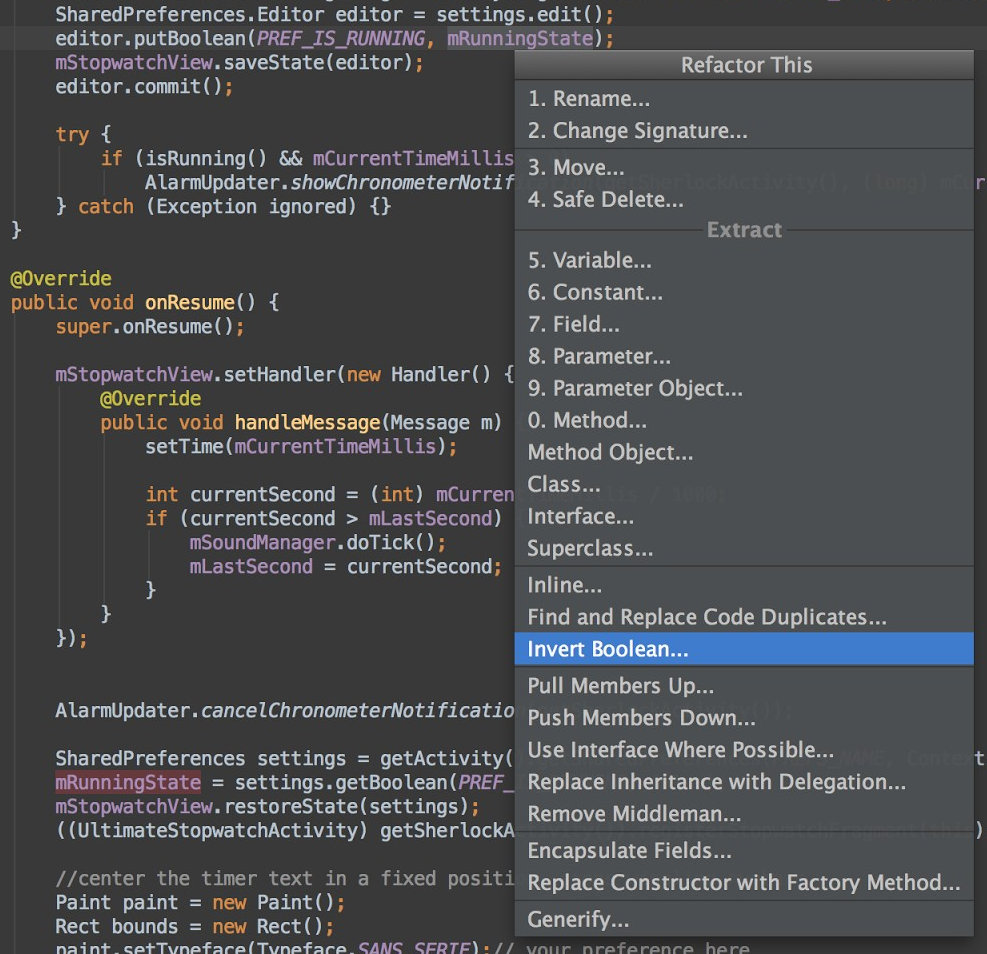
Android Studio includes a powerful code editor. It's based on the IntelliJ IDEA editor, which supports features such as smart editing, advanced code refactoring, and deep static code analysis.


Smart editing features such as inline resource lookups make it easier to read your code, while giving you instant access to edit code the backing resources. Advanced code refactoring gives you the power to transform your code across the scope of the entire project, quickly and safely.


We added static code analysis for Android development, helping you identify bugs more quickly. On top of the hundreds of code inspections that IntelliJ IDEA provides, we’ve added custom inspections. For example, we’ve added metadata to the Android APIs, that flag which methods can return null and which can’t, which constants are allowed for which methods, and so on. Android Studio uses that data to analyze your code and find potential errors.


Smoother and richer GUI


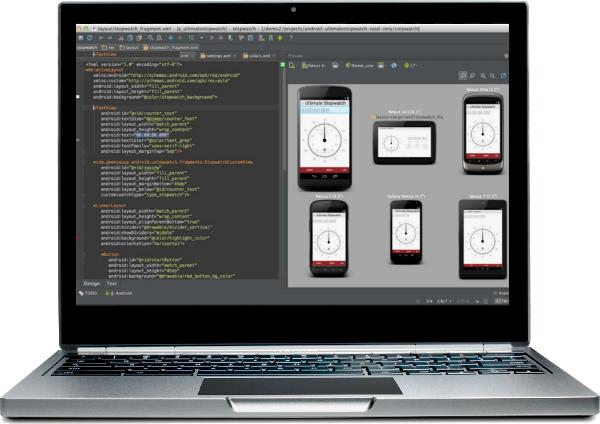
Over the past year we’ve added some great drag-and-drop UI features to ADT and we’re in the process of adding them all into Android Studio. This release of Android Studio lets you preview your layouts on different device form factors, locales, and platform versions.


Easy access to Google services
within Android Tools


We wanted to make it easy for you to harness the power Google services right from your IDE. To start, we’ve made it trivial to add services such a cloud-based backend with integrated Google Cloud Messaging (GCM) to your app, directly from the IDE.


We’ve also added a new plugin called ADT Translation Manager Plugin to assist with localizing your apps. You can use the plugin to export your strings to the Google Play Developer Console for translation, then download and import your translations back into your project.


Open source development


Starting next week we’ll be doing all of our development in the open, so you can follow along or make your own contributions. You can find the Android Studio project in AOSP at https://android.googlesource.com/platform/tools/adt/idea/


Try Android Studio and give us feedback


Give Android Studio a try and send us your feedback! It's free, and the download bundle includes includes everything you need, including the IDE, the latest SDK tools, the latest Android platform, and more. .


Note: This is an early access preview intended for early adopters and testers who want to influence the direction of the Android tools. If you have a production app with a large installed base, there’s no need to migrate your development to the new tools at this time. We will continue to support Eclipse as a primary platform for development.


If you have feedback on the tools, you can send it to us using the Android Studio issue tracker.


Android at Google I/O 2013: Keynote Wrapup


The last year has been an exciting one for Android developers, with an incredible amount of momentum. In fact, over 48 billion apps have been downloaded from Google Play to date, with over 2.5 billion app downloads in the last month alone.


This week, at Google I/O, our annual developer conference, we’re celebrating this momentum, and putting on stage a number of new features and advancements both for the Android platform and Google Play, to help you design, develop and distribute great apps to your users.


We just wrapped up the keynote, and wanted to share a number of those new features; we’ll be spotlighting some of them throughout the week both here, on Google+, and in 36 Android sessions and sandboxes at the Moscone center in San Francisco (with many of the sessions livestreamed at developer.google.com). Enjoy!


Google Play Services 3.1


Google Play Services is our platform for bringing you easier integration with Google products and new capabilities to use in your apps. Today we announced a new version of Google Play Services that has some great APIs for developers.


  • Google Play games services give you great new social features that you can add to your games   achievements, leaderboards, cloud save, and real-time multiplayer

  • Location APIs make it easy to add location- and context-awareness to your apps through a fused location provider, geofencing, and activity recognition

  • Google Cloud Messaging enhancements let you use bidirectional XMPP messaging between server and devices and dismiss notifications

  • Cross-Platform Single Sign On, which lets your users sign in once, for all of their devices using Google+ Sign-In.


Android Studio: A new IDE for Android development


Today we announced a new Integrated Development Environment (IDE) built just for Android, with the needs of Android developers in mind. It’s called Android Studio, it’s free, and it’s available now to try as an early access preview.


To build Android Studio, we worked with with JetBrains, creators of one of the most advanced Java IDEs available today. Based on the powerful, extensible IntelliJ IDEA Community Edition, we've added features and capabilities that are designed specifically for Android development, to simplify and optimize your daily workflow for creating Android apps.


Google Play Developer Console: a better distribution experience


Building awesome Android apps is only part of the story. Today we announced great new features in the Google Play Developer Console that give you more control over how you distribute your app and insight into how your app is doing:


  • App translation service: a pilot program that lets you purchase professional translations for your app directly from the Developer Console.

  • Revenue graphs: a new tab in the Developer Console gives you a summary of your app global app revenue over time.

  • Alpha and beta testing and staged rollouts: you can now distribute your app to controlled alpha and beta test groups, or do staged rollouts to specific percentages of your userbase.

  • Optimization tips: design your app for tablets and understand how to expand your app into new language markets.

  • Google Analytics: launching later this summer, your Google Analytics usage stats will be viewable right in the Developer Console.

  • Referral tracking: also launching later this summer, you’ll get a new report in Google Analytics to show what blogs, campaigns, and ads are driving your installs.


Follow the Android Sessions


Join us for the Android sessions today and through the week by livestream. Visit the I/O Live Stream schedule for details.